Quick start: your first projection
Connect a projector, map a shape onto a real surface and play a visual on it — in about five minutes.
· Screenshots show the iPhone app.
Video guide
What you need
- The Lazy Lighting app on iPhone, iPad or an Android phone or tablet.
- A projector with HDMI, AirPlay, or Android TV / Google TV built in. No projector yet? Everything below works on your phone's preview, so you can start now and connect later.
- A surface — a wall, a box, a shelf, a window. Matte and light-coloured works best. Dim the room.
1. Connect your projector
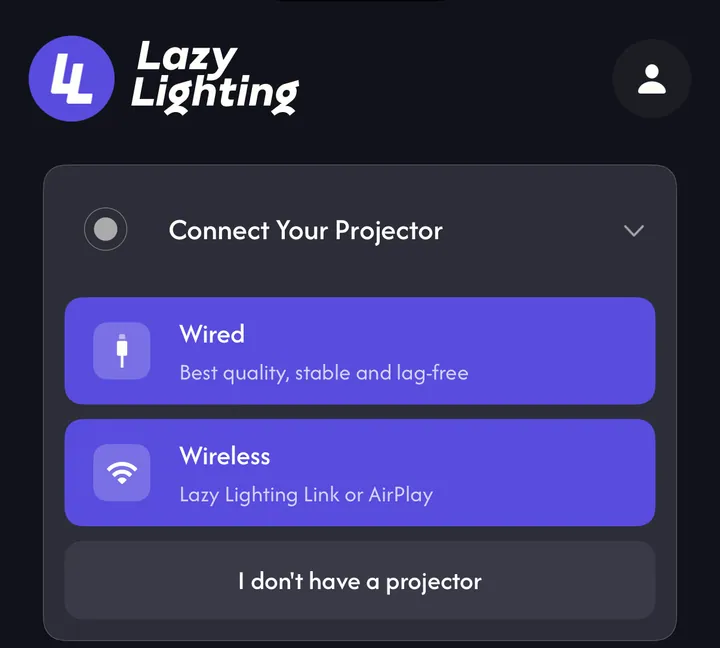
On the Home screen, tap Connect Your Projector, then Wired (a USB-C or Lightning to HDMI adapter — best quality, no lag) or Wireless (Lazy Lighting Link or AirPlay). When it works, the card turns into Projector Connected and the projector shows the Lazy Lighting logo.
2. Map a shape onto your surface
- 1
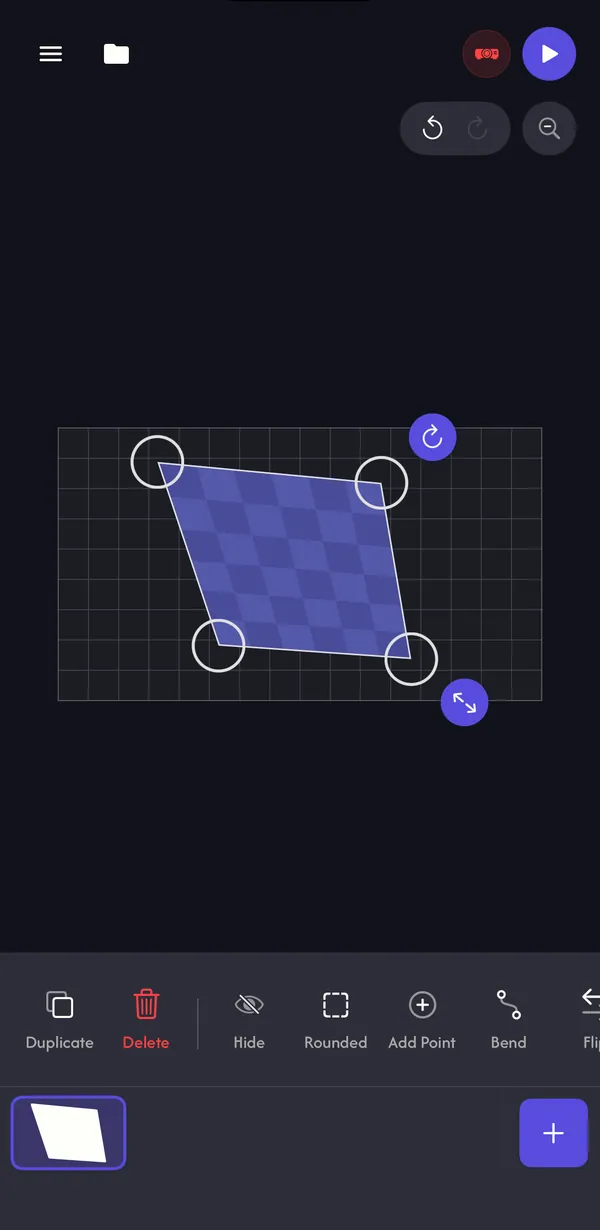
Tap New Project. The Mapping screen opens with an empty canvas — it is the projector's picture.
- 2
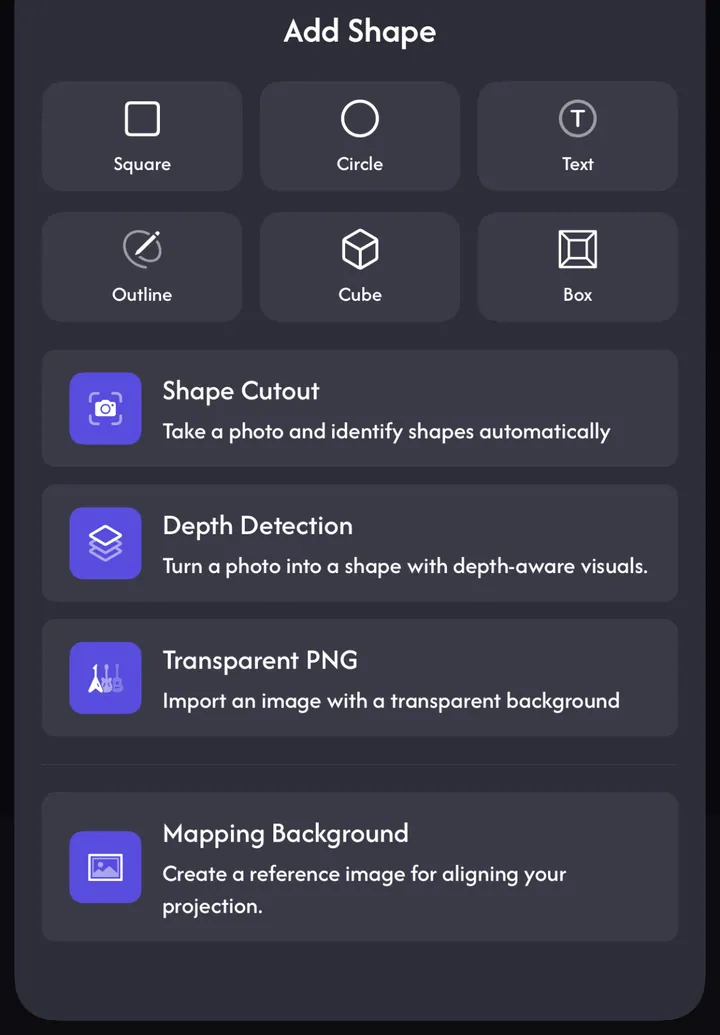
Tap + and choose Square (or Circle, Text, Cube…). The shape appears on the phone and on the projector.
- 3
Drag each corner pin until the projected shape sits exactly on the edges of your surface. Drag inside the shape to move it.
3. Add a visual
- 1
Tap the purple Play button in the top-right corner.
- 2
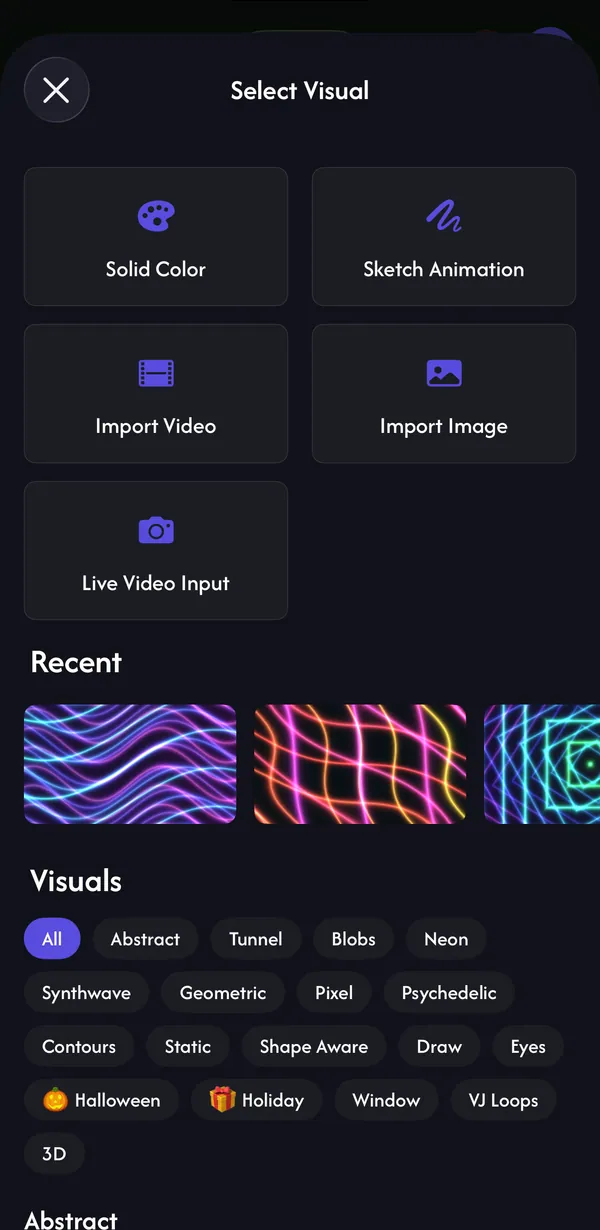
Tap + to open Select Visual and pick anything — a generated visual, a video loop, Solid Color, or your own video or photo.
- 3
The visual fills your shapes straight away, on the phone and on the projector.
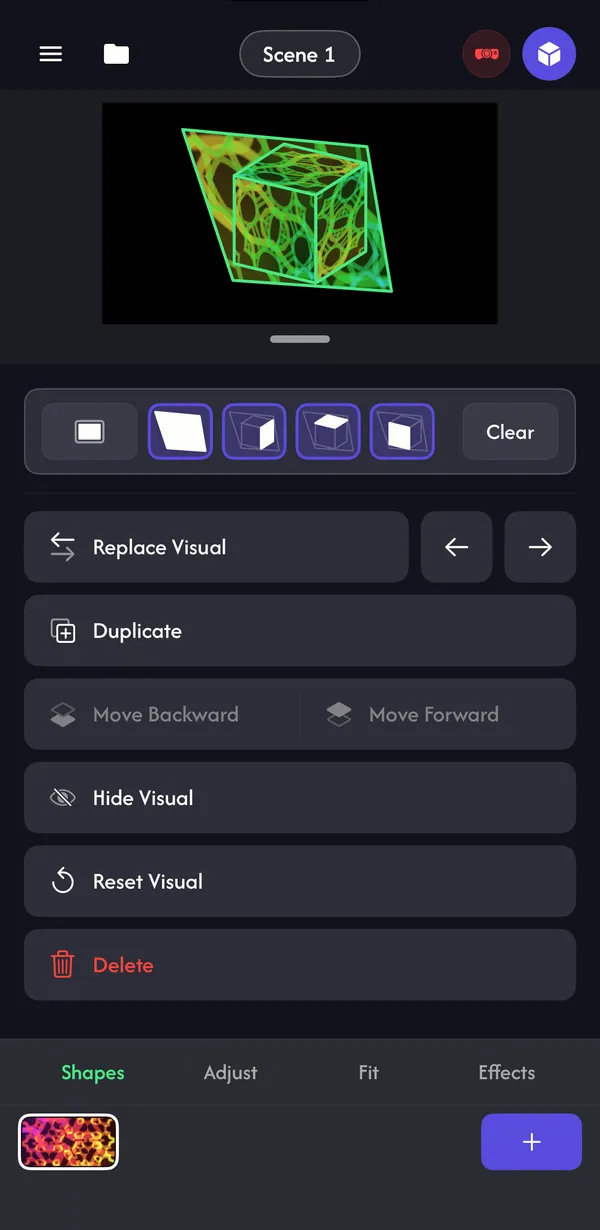
4. Make it yours
- Adjust tab: speed, colour, scale and the visual's other settings, plus Preset A/B/C and Random.
- Fit tab: crop and position the visual inside the shape.
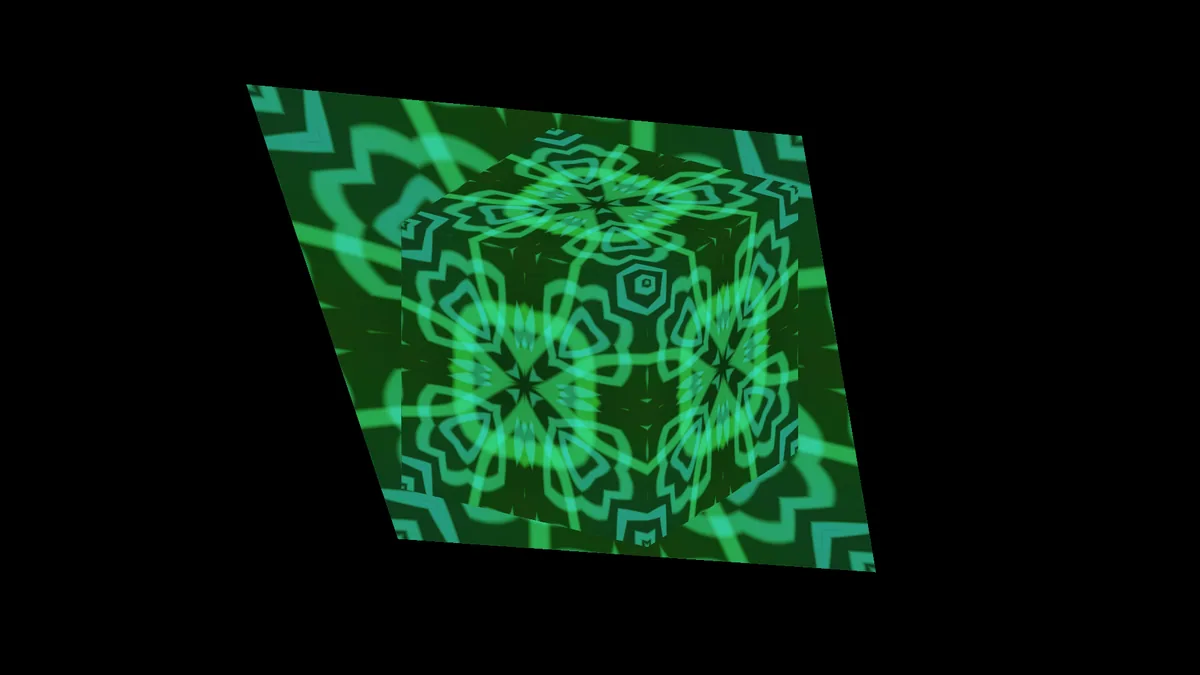
- Effects tab: stack effects like Kaleidoscope or Tile.
- Make it react: tap any setting and link it to music, the beat, a MIDI knob or an LFO (Pro).
5. Save
Every change is autosaved. Next time, tap Resume on the Last Session card on Home. With Pro you can also save named projects from the folder icon.
Saving projects →Common questions
Do I need a projector to start?
No. Mapping and visuals work on the phone's preview, so you can build a project first and connect a projector later.
Is Lazy Lighting free?
It's free to download. The free plan includes mapping with every basic shape, 22 visuals plus Solid Color, the Tile and Slide effects, your own videos and photos, scenes and autosave, with a small watermark on the projector. Pro removes the watermark and unlocks all 195 visuals, every effect, audio and MIDI reactivity, photo shapes, named projects and video export.
Which devices does it run on?
iPhone, iPad and Android phones and tablets. There is no Mac or Windows version.