Connect a projector
Connect your iPhone, iPad or Android device to a projector with an HDMI cable, AirPlay, screen mirroring or Lazy Lighting Link. Product links are affiliate links.
· Screenshots show the iPhone app.
Video guide
As an Amazon Associate, Lazy Lighting earns from qualifying purchases.
1. HDMI cable (recommended — no lag)
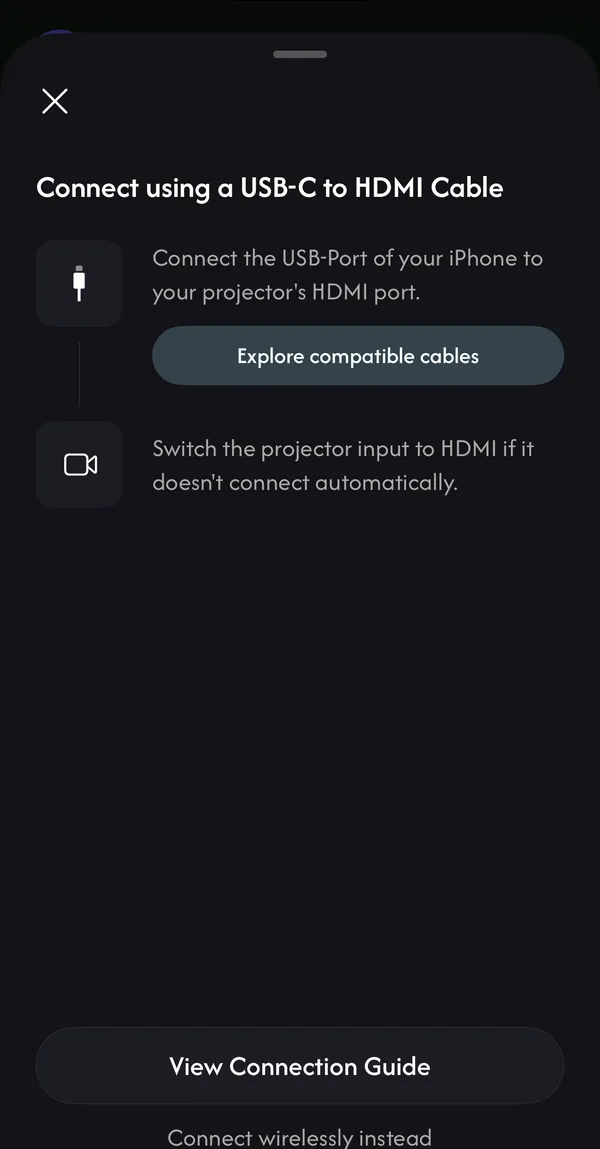
On Home, tap Connect Your Projector → Wired. The app shows the adapter your device needs:
- USB-C iPhone/iPad: ↗ — a USB-C → HDMI adapter (or a USB-C-to-HDMI cable) for iPhone 15 and later and USB-C iPads. Any adapter that supports video out works; this is the one we use.
- Lightning iPhone/iPad: ↗ — Apple's Lightning Digital AV Adapter, for iPhone 5 through 14 and iPhone SE.
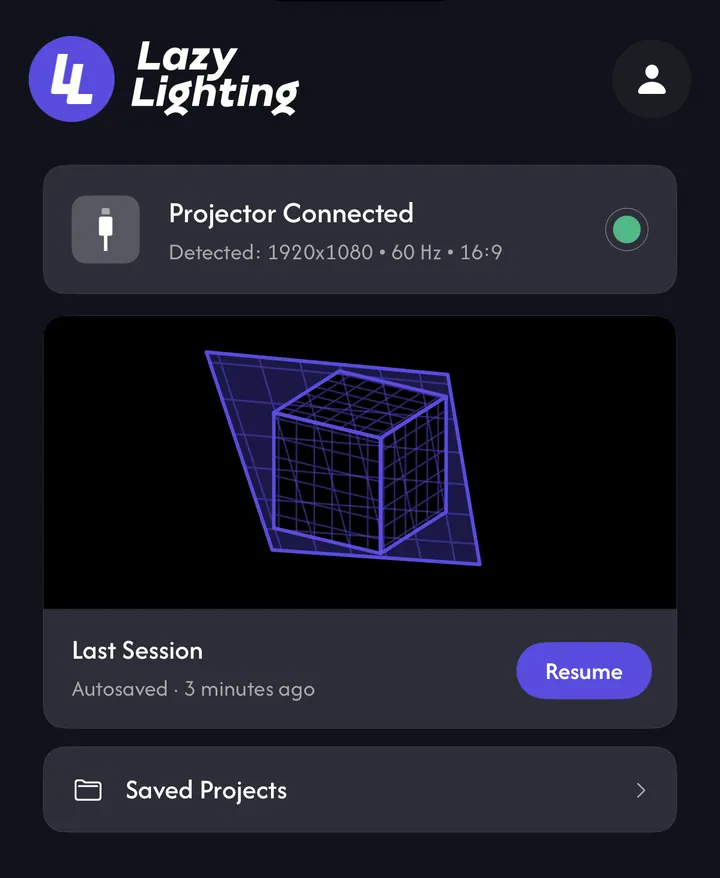
- Plug the adapter into your device and an HDMI cable into the projector, then switch the projector's input to HDMI. Lazy Lighting connects on its own — Home shows Projector Connected with the detected resolution, and the projector shows the Lazy Lighting logo on black.

2. AirPlay (wireless)
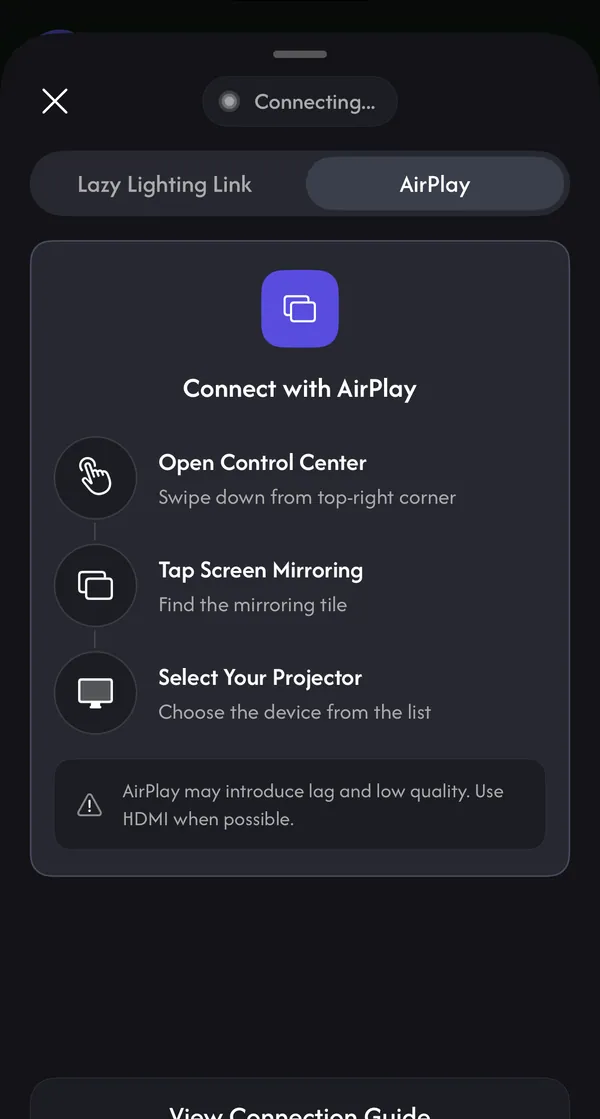
Works with AirPlay projectors and TVs and with Apple TV. On Home, tap Connect Your Projector → Wireless → AirPlay, or go straight to Control Center:
- Open Control Center (swipe down from the top-right corner).
- Tap Screen Mirroring and choose your projector, TV or Apple TV. Lazy Lighting takes over the mirrored screen with the projector output.
- To stop, open Control Center → Screen Mirroring → Stop Mirroring.
3. Lazy Lighting Link (Android TV / Google TV)
Install the Link app on the projector, then in Lazy Lighting tap Connect Your Projector → Wireless and pick it under Available Projectors (or connect by QR code or IP address). Enter the PIN the TV shows the first time.
Wireless casting step by step →Check the connection
In Mapping and Play, the projector button at the top is red when nothing is connected (tap it to connect) and green when the projector is live. With a wireless connection, tap it to end the connection.
Not connecting?
- Check the projector is on the right input.
- Try another cable or adapter — some "charge only" USB-C cables carry no video.
- Screen Mirroring needs both devices on the same Wi-Fi.
- Still nothing? Unplug the adapter, close and reopen Lazy Lighting, and plug it back in.
As an Amazon Associate, Lazy Lighting earns from qualifying purchases.
1. USB-C → HDMI cable (recommended — no lag)
- USB-C → HDMI adapter ↗ — or a USB-C-to-HDMI cable. Your phone or tablet must support video output over USB-C (DisplayPort Alt Mode); most Samsung Galaxy, Pixel 8+ and recent flagships do.
- Plug in, switch the projector's input to HDMI. The app connects automatically — the projector button turns green.
2. Screen mirroring (Smart View / Miracast)
- Open Quick Settings → Smart View / Screen mirroring (the name depends on your phone) → choose your projector or Miracast receiver. Lazy Lighting takes over the mirrored screen with the projector output.
- If it doesn't take over, disconnect and reconnect the mirroring, or select the mirroring input on the projector.
3. Lazy Lighting Link (Android TV / Google TV)
Install the Link app on the projector and pick it from the list in Lazy Lighting (or scan the QR code under Live Cast → Manual Connection in the TV app), then enter the PIN the TV shows. Both devices need to be on the same Wi-Fi.
Wireless casting step by step →Not connecting?
- Check the projector is on the right input.
- Try another cable/adapter — some "charge only" USB-C cables carry no video, and not every phone supports video out.
- Lazy Lighting Link needs both devices on the same Wi-Fi; Miracast doesn't, but the projector must support it (or use a dongle). For Link, restart the Link app on the projector and rescan the QR code.
Common questions
Which adapter does my iPhone need?
iPhone 15 and later use a USB-C to HDMI adapter. iPhone 14 and earlier (and iPhone SE) use Apple's Lightning Digital AV Adapter. The Wired screen in the app tells you which one your device needs.
The projector only shows the Lazy Lighting logo — is that right?
Yes. That's the idle screen and means you're connected. Open a project in Mapping or Play to send your shapes and visuals.
Is a cable or wireless better?
A cable has no lag and the best picture, so it's best for music-synced shows. AirPlay and Lazy Lighting Link are handy when a cable can't reach the projector.