How to do projection mapping: a step-by-step tutorial for beginners
Learn how to do projection mapping tonight: map a wall, window or door from your phone step by step, fix the usual mistakes, then try a simple 3D box.
By Jake Silverstein
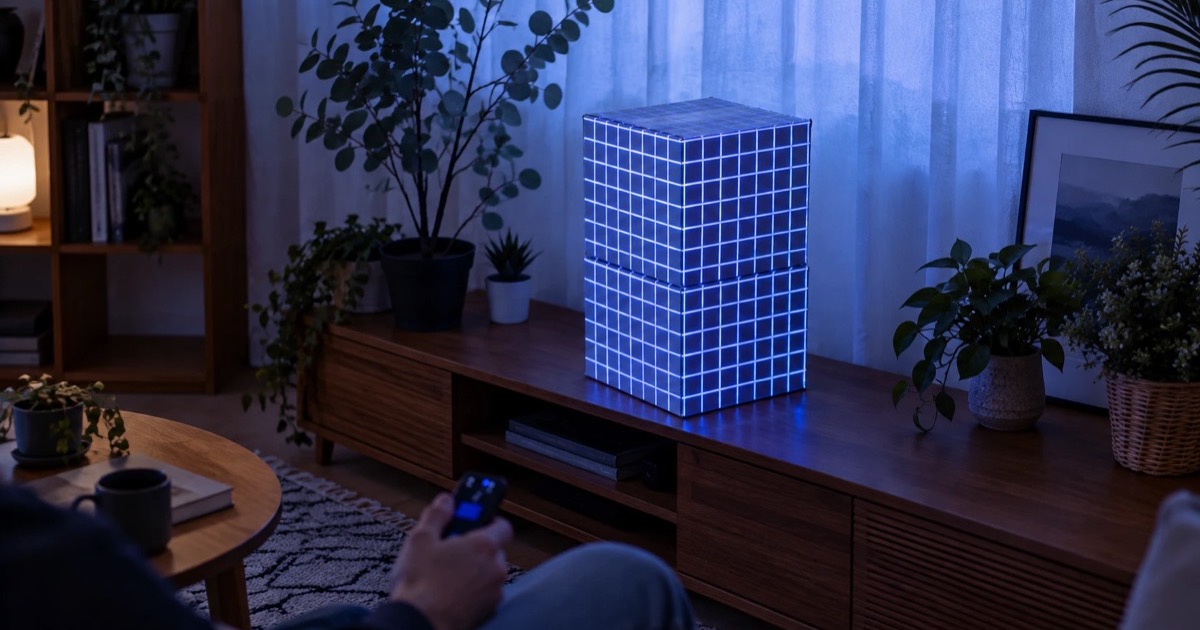
Projection mapping means fitting projected video onto real surfaces instead of a flat screen. The light lands on a door, a wall panel or the glass of a window and stops exactly at its edges. It looks like something that needs a studio. It doesn't: with one projector, a phone and a dark room, you can have your first mapped surface running tonight.
This is the hands-on version. You'll map one flat surface first, because that teaches the whole technique, then move on to a simple object. The steps work with any mapping software, but we show the Lazy Lighting workflow as the main path because it runs on the phone you already own. Disclosure: we make Lazy Lighting.
New to the idea? What is projection mapping →
Map it from your phone
Lazy Lighting turns your phone into a projection mapping tool for any projector, on iPhone, iPad and Android.
Free to download · optional Pro
What you need
- A projector. Any projector with an HDMI input works, including a small portable one. Brightness decides where it works (see the next section); resolution barely matters for a first project.
- A phone or tablet with a mapping app. Lazy Lighting runs on iPhone, iPad and Android phones and tablets, and it is free to download. There is no Mac or Windows version.
- A way to connect them. A USB-C or Lightning to HDMI cable is the most reliable. Wireless works too: AirPlay from an iPhone or iPad, screen mirroring on Android phones that support it, or the Lazy Lighting Link receiver app on an Android TV or Google TV projector. Chromecast isn't supported.
- A flat surface. A door, a section of wall, a cupboard front, or a window with a white drop cloth hung on the inside of the glass. Matte and light-coloured beats glossy or dark.
- Something steady. A tripod, a shelf or a stack of books, plus some tape. The projector must not move once you've mapped.
- Darkness. After dark, with the lamps off. A dark room does more for the result than any upgrade.
How bright does the projector need to be?
Go by ANSI lumens, not the inflated "lumens" figure on many listings. These numbers assume you're projecting after dark.
| Surface | ANSI lumens, after dark |
|---|---|
| Indoor objects or a window | 300+ |
| A wall in a dim room | 500–1,000 |
| Indoors with the lights on | 2,000+ |
| A garage door | 3,000+ |
| A house front | 4,000+ |
How to do projection mapping on a flat surface, step by step
- 1
Pick your surface. Choose one flat area with clear edges: a door, a framed section of wall, a cupboard front or a window. Clear anything in front of it. Hard edges make the result look deliberate, so a door frame beats a vague patch of wall.
- 2
Place the projector and darken the room. Set the projector on a tripod or shelf where its image covers the whole surface with some room to spare. It doesn't have to be dead centre, because mapping corrects the angle. Then switch off the lamps and close the curtains.
- 3
Focus, and switch keystone off. Focus the lens until the projector's own menu text is sharp. Turn auto keystone off and set manual keystone to zero, so the projector isn't correcting the image at the same time as you.
- 4
Connect your phone. Plug in the HDMI adapter and switch the projector to that input, or connect wirelessly. Lazy Lighting shows at the top of the screen when the projector is connected.
- 5
Add a shape. In Mapping, tap + and choose Square for a door, a panel or a rectangular window. The shape appears on the surface as an outlined grid. For an arched window, pick Outline and trace it in one continuous stroke; for anything round, pick Circle.
- 6
Drag the corners onto the real corners. Watch the projection, not the phone, and move each corner until it sits exactly on the surface's corner. Pinch to zoom the canvas for the last few millimetres. Use Bend to curve an edge, or Add Point if the surface has more than four corners.
- 7
Switch to Play and pick a visual. Tap Play, then + to fill the shape with one of the 100+ built-in visuals or your own video or photo. Start with something bold and high-contrast; subtle gradients disappear on a real wall. Every shape can play its own visual.
- 8
Step back, check, then leave it alone. Look from where people will actually stand and fix any edge that overshoots. After that, don't touch the projector. Keep the phone on a charger, and on iPhone set Auto-Lock to Never so it doesn't sleep halfway through the evening.
Map it from your phone
Lazy Lighting turns your phone into a projection mapping tool for any projector, on iPhone, iPad and Android.
Free to download · optional Pro
Next: more surfaces, masks and a simple object
Once one surface works, everything else is the same move repeated. Add a shape for the door frame, another for each window, and give each its own visual. Corners that sit close together snap, which keeps the seams between neighbouring shapes closed.
To keep light off something inside a shape, such as the bars of a window or a painting on the wall, use another shape as a mask or cutout. Turn on Enable Mask Mode in Play settings first; the Mask and Cutout controls then appear in the Fit tab.
Then try an object. A white cardboard box is the classic first 3D target. Add a Cube shape, position it over the box by hand, and confirm it: Lazy Lighting turns it into one linked face per visible side. The Box shape does the same for the inside of a box, like a shelf cubby. Expect under 20 minutes for your first box. The 3D guide covers projector angle, seams and visuals that sell the depth.
Guide for creating your first 3D projection mappings →Common mistakes and how to fix them
- The shape won't stay square. The projector's auto keystone is fighting your mapping. Turn it off, set keystone to zero and redo the corners. Mapping replaces keystone entirely.
- Light spills onto the wall around the surface. Pull the corners in until each edge sits just inside the surface, or cover the overspill with a mask. A faint grey rectangle around everything is the projector's black level, not your mapping; a darker room hides most of it.
- The image is too dim. Check the projector's ANSI lumens against the table above. Moving it closer makes the image smaller and brighter, and saturated, high-contrast visuals read better than pastels.
- Everything looks washed out. Other light is reaching the surface: a lamp, a TV, a hallway, a streetlight. Switch it off, block it, or wait until it's fully dark. Outdoors, start after dusk, not at sunset.
- The mapping drifted. The projector got nudged or a tripod leg settled. Weigh it down, tape the cables so nobody trips on them, and drag the corners back. Even a saved project needs realigning after the projector moves, so lock it down before you start.
- The edges look soft. Focus before you touch a corner. You can't line up edges on a blurry image.
5 beginner projection mapping ideas
- A room wall. Map a rectangle, or a few rectangles laid out like picture frames, on a bedroom or living-room wall and run slow ambient visuals for a party or a quiet evening. Aim for 500 to 1,000 ANSI lumens in a dim room.
- A window silhouette. → Hang a white drop cloth on the inside of the glass, put the projector in the room behind it and map the window, so people outside see silhouettes, ghosts or falling snow. 300+ ANSI lumens is enough.
- A box or cube. → Your first real 3D project. Paint the box matte white if it has printing on it, then map it with the Cube shape.
- Pumpkins. Map a Circle over a white foam pumpkin or a pale real one and play a jack-o'-lantern face. Lazy Lighting includes 45 Halloween scenes, jack-o'-lantern faces among them.
- A house front for Halloween and Christmas. → Give each window, door and panel its own shape and a different scene. Lazy Lighting includes 45 Halloween and 30 Christmas scenes, and a whole house front takes under 30 minutes to map. You'll need 4,000+ ANSI lumens, and since our outdoor pick fills at most about 6.6 m (22 ft) wide, map the street-facing section of a bigger house.
When you outgrow one projector
Lazy Lighting drives one projector output from one phone or tablet, and it has no DMX, Art-Net, Syphon or Spout. When a project needs several projectors blended into one image, or lighting control over DMX, the next step is desktop software on a computer: MadMapper, Resolume, HeavyM or TouchDesigner. The skills carry straight over, because it's still shapes, corners and masks.
Projection mapping software compared →Frequently asked questions
- How do I start projection mapping as a complete beginner? Start with one flat surface, like a door or a section of wall, in a dark room. Connect your phone to any projector with an HDMI input, add a shape in a mapping app, drag its corners onto the surface and pick a visual. Move on to a box once that works.
- Can I do projection mapping with just my phone? Yes, plus a projector. Lazy Lighting runs the mapping and the visuals on an iPhone, iPad or Android phone or tablet, and connects by HDMI cable, AirPlay, Android screen mirroring or the Lazy Lighting Link app on an Android TV or Google TV projector.
- Do I need a special projector? No. Any projector with an HDMI input works, and because mapping replaces keystone, a cheap projector maps as accurately as an expensive one. Brightness is what matters: 300+ ANSI lumens for objects and windows indoors, 3,000+ for a garage door and 4,000+ for a house front.
- Can I try projection mapping without paying? Yes. Lazy Lighting is free to download, and the free plan includes the mapping shapes and about 20 visuals, with a small watermark on the projector output. Pro (monthly, annual or lifetime) adds every visual, audio-reactive visuals, BPM sync, MIDI, LFOs, live camera input, video export up to 4K, project saving and no watermark.
- How long does projection mapping take? In Lazy Lighting, a few minutes for one flat surface, under 20 minutes for a 3D box and under 30 minutes for a whole house front.
- Can I do projection mapping on a Mac or Windows PC? Not with Lazy Lighting, which runs on iPhone, iPad and Android. On a computer, desktop tools like MadMapper, Resolume, HeavyM and TouchDesigner handle projection mapping, and they're the right choice for multi-projector or DMX work.