Phone projector app: what actually works
No app can turn a phone into a projector. Here's what works: connecting an iPhone or Android phone to a projector by cable or wirelessly.
By Jake Silverstein
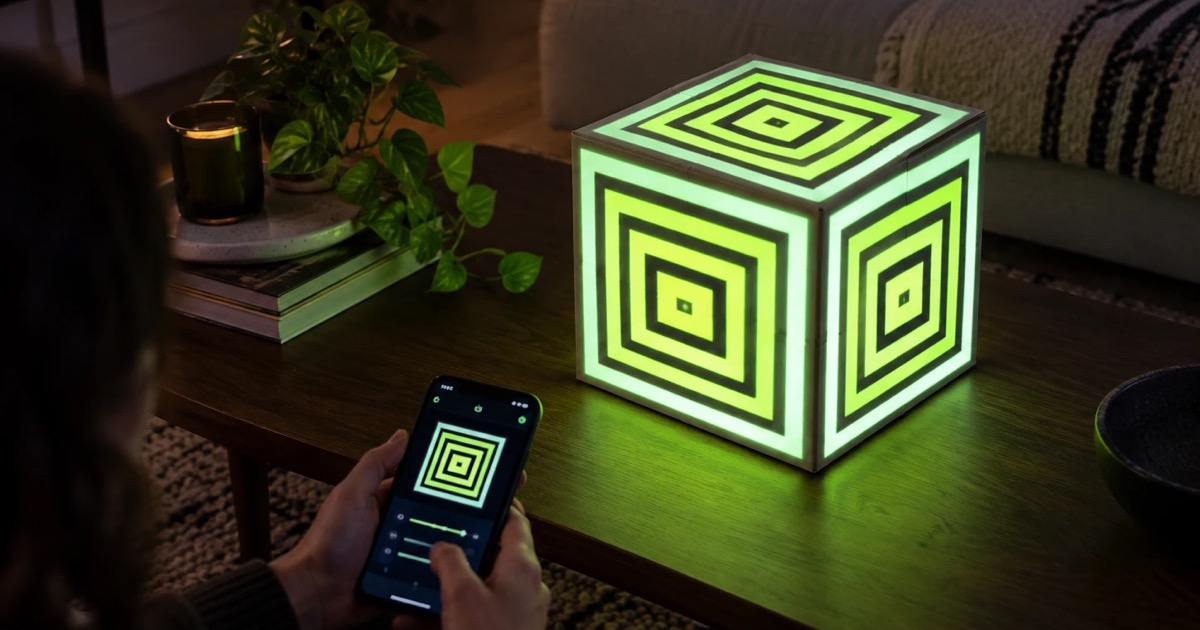
No app can turn your phone into a projector, because a phone has no lamp or lens that can throw a picture onto a wall. What works is a projector, even a small one, plus a cable or wireless connection that sends your phone's screen or video to it.
The "projector apps" in the App Store and Google Play are either simulators that draw a fake beam on your screen or screen-mirroring tools that need a projector or TV to send to. Below: how to connect an iPhone or Android phone, which apps are worth using, and how to fit the picture to walls, windows and objects. Disclosure: we make Lazy Lighting, one of the apps mentioned here.

Map it from your phone
Lazy Lighting turns your phone into a projection mapping tool for any projector, on iPhone, iPad and Android.
Free to download · optional Pro
Can an app turn your phone into a projector?
No. A projector pushes a very bright light through a lens that focuses the picture on a surface metres away. A phone screen glows just enough to read at arm's length, and its light spreads in every direction. Software can't add a lamp or a lens, so there are two ways to get a phone's picture onto a wall.
- A projector plus a connection. Any projector with an HDMI input or wireless screen mirroring will do, mini projectors included. It's the only option that gives a bright, sharp picture.
- A DIY shoebox projector. Fix a magnifying glass in one end of a shoebox, put the phone inside at full brightness, and slide it until the image focuses. The picture is dim, small and soft, and only watchable in a pitch-black room. It's also upside down; locking rotation and flipping the phone fixes that but leaves it mirrored left to right. A fun science project, not a projector.
What you need: a projector and a connection
Any projector works, from a pocket-sized model to a home cinema one. The other half is getting the picture there. A cable is the most reliable: no lag, no Wi-Fi dropouts, and it works with any projector that has an HDMI input. Wireless is tidier but depends on what the projector supports.
| Phone | By cable | Wirelessly |
|---|---|---|
| iPhone 15 and later | USB-C to HDMI adapter or cable. Not every model sends video over USB-C, so check your iPhone's tech specs or use AirPlay. | AirPlay to an Apple TV plugged into the projector, or a projector or TV with AirPlay built in |
| iPhone 5 to iPhone 14, and SE | Apple Lightning Digital AV Adapter plus an HDMI cable | AirPlay, as above |
| Android | USB-C to HDMI, on phones that support video output, such as many Samsung Galaxy flagships and recent Pixels | Smart View or Miracast to a projector that supports it, or the Lazy Lighting Link app on an Android TV or Google TV projector |
How to connect an iPhone to a projector
- 1
Check the port. iPhone 15 and later have USB-C. iPhone 5 to iPhone 14, and every iPhone SE, have Lightning.
- 2
Get the right adapter. A USB-C to HDMI adapter or cable for USB-C models, or Apple's Lightning Digital AV Adapter for Lightning models. Plain charging cables carry no video.
- 3
Plug in and switch inputs. Run an HDMI cable from the adapter to the projector and set the projector to that HDMI input. Your iPhone's screen appears on the wall.
- 4
Or go wireless with AirPlay. Connect the iPhone to the same Wi-Fi as an Apple TV or AirPlay-capable projector, open Control Center, tap Screen Mirroring and choose the receiver. Enter the code if one appears.
Map it from your phone
Lazy Lighting turns your phone into a projection mapping tool for any projector, on iPhone, iPad and Android.
Free to download · optional Pro
How to connect an Android phone to a projector
- 1
Check for video output. A wired connection needs a USB-C port that carries video (DisplayPort Alt Mode). Many Samsung Galaxy flagships and recent Pixels do; many budget phones don't.
- 2
Plug in a USB-C to HDMI adapter or cable. Connect it to the projector and switch to that HDMI input. If a Samsung phone offers DeX, choose screen mirroring instead.
- 3
Or mirror to a Miracast projector. Open Quick Settings and tap Smart View or Screen mirroring (the name depends on the brand), then pick the projector.
- 4
Or cast to a Google TV projector. Put the phone on the same Wi-Fi, open the Google Home app, touch and hold the projector's tile, tap Cast and choose to cast your screen.
Which apps are worth using
You may not need to download anything. It depends on what you want on the wall.
- Your phone's built-in mirroring. Screen Mirroring on iPhone and Smart View or Screen cast on Android show your whole screen on a projector. Most third-party "phone projector" apps wrap this same feature or are simulators.
- Streaming apps. YouTube and many video apps send a video straight to a Google TV projector or AirPlay receiver, and the phone becomes the remote.
- The projector's own apps. Projectors with Google TV or Android TV built in run streaming apps themselves: the simplest route for a movie night. Some streaming apps block mirroring or cable output of protected video, another reason to play films this way.
- Remote-control apps for projectors. Many brands have a companion app for power, focus and settings, and Google TV projectors can usually be driven from the remote in the Google TV or Google Home app.
- Lazy Lighting, for projection mapping. → When you want the picture fitted to a window, a wall or an object instead of a plain rectangle. More on that below.
Go further: projection mapping from your phone
Screen mirroring puts a rectangle on the wall. Projection mapping shapes the picture to what it lands on, so a ghost fills one window exactly or a pattern wraps a box without spilling onto the wall behind.
Lazy Lighting does this from an iPhone, iPad or Android phone or tablet. It's built for beginners and works with any projector you can connect: by HDMI cable, AirPlay, screen mirroring on Android phones that support it, or the Lazy Lighting Link receiver app on Android TV and Google TV projectors or a Chromecast with Google TV. There is no Mac or Windows version.
- 1
Add a shape. Square, circle, text, freehand outline, cube or box.
- 2
Fit it. Drag the corners on your phone while you watch the projection until the shape sits exactly on the surface.
- 3
Pick a visual. There are 100+ built in, including 45 Halloween scenes and 30 Christmas scenes, or import your own videos and photos.
Picking a projector for phone use
Brightness matters more than resolution. Compare ANSI lumens, and be wary of budget listings that quote much bigger "lumens" figures without saying ANSI. As a rough guide, after dark:
| What you're projecting on | Brightness (ANSI lumens) |
|---|---|
| Objects or a window, indoors | 300+ |
| A wall in a dim room | 500 to 1,000 |
| Any room with the lights on | 2,000+ |
| A garage door, outdoors | 3,000+ |
| The front of a house | 4,000+ |
- Indoors: we recommend the Nebula Capsule 3 Laser (300 ANSI lumens) for objects, windows and small images in a dark room.
- Outdoors: for garage doors and house fronts we recommend the much brighter XGIMI Horizon 20 Pro.
- Connections: an HDMI input covers every phone with a cable. For wireless, look for Google TV or Android TV built in, or add an Apple TV for AirPlay.
Frequently asked questions
- Is there a real projector app for iPhone? No. No app can make an iPhone project light; apps that claim to are simulators or screen-mirroring tools. Connect the iPhone to a projector with a USB-C or Lightning to HDMI adapter, or mirror it with AirPlay.
- Can I use my phone as a projector without a projector? Only as a DIY shoebox with a magnifying glass: a dim, small, upside-down picture in a dark room. For anything watchable you need a projector; a mini projector is enough indoors after dark.
- How do I connect my phone to a projector wirelessly? On iPhone, use AirPlay to an Apple TV or AirPlay-capable projector (Control Center, then Screen Mirroring). On Android, use Smart View or Miracast if the projector supports it, or cast your screen from the Google Home app to a Google TV projector. Keep both on the same Wi-Fi.
- Can I control a projector with my phone? Often. Google TV and Android TV projectors can usually be controlled from the Google TV or Google Home app, and many brands have their own remote apps. Apps like Lazy Lighting control what the projector shows, not its power or focus.
- What's the best mini projector for a phone? For indoor use after dark, we recommend the Nebula Capsule 3 Laser. Any projector with an HDMI input works with an adapter; pick one by brightness for where you'll use it.