Christmas present projection mapping: turn plain boxes into moving wrapping paper
Project moving wrapping paper onto a stack of plain white boxes: what you need, where the projector goes, how to map each box from your phone and how to film it.
By Jake Silverstein · Updated
Stack a few plain white boxes, point a small projector at them, and they turn into Christmas presents whose wrapping paper moves. Snowflakes drift across the lids, rows of gifts and stockings slide around the sides, and every box can wear a different pattern. It's an indoor setup, it needs no artistic skill, and it's the one in most of our Christmas videos.
Our 20-second Short of this setup, below, has been viewed more than 67 million times on YouTube.
This guide covers the boxes, where the projector goes, mapping each box from your phone, picking the patterns and filming the result. The steps use Lazy Lighting. Disclosure: we make Lazy Lighting.
Christmas projection mapping: windows, garage doors and the whole house →
30 Christmas scenes built in
Lazy Lighting maps moving wrapping paper, sweater patterns, snow and Santa's sleigh onto boxes, windows and walls from your phone, with any projector. Four scenes are on the free plan.
Free to download · optional Pro
What you need
| Item | What to look for |
|---|---|
| Boxes | Three to six plain white boxes in different sizes, with crisp edges. Any boxes wrapped in matte white paper work too. |
| Projector | Any projector with an HDMI input. Indoors after dark, 300+ ANSI lumens is plenty for a stack of boxes. We use the Nebula Capsule 3 Laser: 300 ANSI lumens and Google TV, so it also connects wirelessly with Lazy Lighting Link. |
| Tripod | Any camera tripod, so the projector sits above the stack and can't get bumped. |
| Phone or tablet | An iPhone, iPad or Android phone or tablet with Lazy Lighting. There is no Mac or Windows version. |
| Connection | A USB-C or Lightning to HDMI adapter is the most reliable. Wireless: AirPlay from iPhone or iPad, screen mirroring on Android phones that support it, or Lazy Lighting Link on an Android TV or Google TV projector, or on a Chromecast with Google TV plugged into the projector's HDMI port. |
Choose and prepare the boxes
The boxes are the screen, so their surface decides how good the result looks.
- White and matte. White shows the pattern's real colors. Plain white gift boxes, white shipping boxes, or any box wrapped in white butcher paper all work. Glossy paper throws a bright glare spot back at the camera.
- Not already patterned. Real wrapping paper fights the projected pattern, and dark or metallic paper swallows the light. Save it for the presents you give.
- Crisp edges. Sharp corners and flat faces map cleanly. Crushed corners and bulging sides make the pattern wobble off the edge.
- Different sizes. A tall box, a wide flat one and a small cube read as presents. Five identical boxes read as a moving day.
Arrange the stack and place the projector
Build the stack where the room can go fully dark: on a table, a sideboard or the floor in front of a plain wall. Under the Christmas tree looks lovely, but the tree lights wash out the projection, so switch them off or dim them while you film.
Head-on, each box shows the projector only its front face. Move the projector 30 to 45 degrees to one side and a little above the stack, so it sees the front, one side and the top of every box. Every face the projector can see is a face you can wrap.
- Stagger the boxes. A box directly in front of another casts a shadow on it. Step them like stairs, or spread them out, so the projector reaches every face you want lit.
- Fit the whole stack in the picture. Move the tripod back until every box sits inside the projected rectangle with a little room to spare.
- Turn off auto keystone. Auto keystone and other automatic image correction reshape the picture whenever the projector moves, which undoes your mapping. Switch them off in the projector's settings and let the app do the fitting.
Map each box from your phone
- 1
Connect the projector. Plug in the adapter or connect wirelessly, then open Lazy Lighting. The projector button at the top of the Mapping screen turns green when it's connected.
- 2
Add a Cube for the first box. Tap + and choose Cube. A 3D cube appears in the projection.
- 3
Fit it to the box. Drag the cube to move it, and drag beside it (or use the joystick) to turn it until it lines up with the box. Then drag single corners until every edge sits on the box's edges. Watch the box, not your phone.
- 4
Tap OK. The cube becomes three welded faces: front, side and top. Each face can play its own visual, or all three can share one.
- 5
Repeat for every box. With Snap Corners on (it is by default), a corner you drag near another shape's corner jumps onto it, so boxes that touch line up neatly.
- 6
Use a Square for odd faces. If a box is partly hidden, or you only want its front lit, map that face with a Square instead of a Cube.
30 Christmas scenes built in
Lazy Lighting maps moving wrapping paper, sweater patterns, snow and Santa's sleigh onto boxes, windows and walls from your phone, with any projector. Four scenes are on the free plan.
Free to download · optional Pro
Pick the wrapping paper
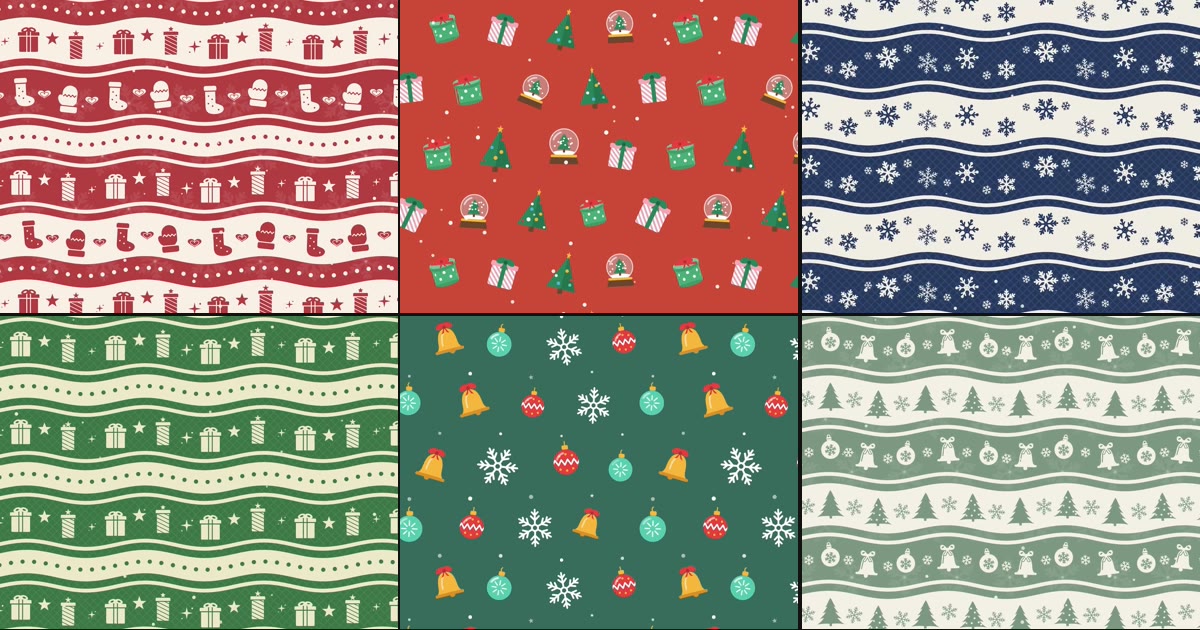
Lazy Lighting has 30 built-in Christmas scenes, and 17 of them are seamless wrapping-paper patterns that scroll slowly across a box: rows of gifts, stockings and mittens, snow globes and little trees, bells and ornaments, and snowflakes, in reds, greens, sage, cranberry and midnight blue. The knitted-sweater patterns, with reindeer, snowmen and penguins, and the candy-cane stripes work as wrapping paper too.
In Play, tap + and pick a pattern from the Holiday category. A new visual fills every shape at first. On the Shapes tab, tap Clear, then tap the three faces of one box. Add the next pattern and give it the next box.
- One pattern per box. Different patterns and colors make the stack read as separate presents.
- Same pattern on every face of a box. The wrap then looks continuous around the corners, like real paper.
- Mix in a sweater. One knitted-sweater box in a stack of paper patterns looks like the present from Grandma.
- Your own designs. Import any video or image, such as a scan of your favorite wrapping paper, and map it like a built-in scene.
Make the presents move to music
With Pro, any setting can follow music. Link a pattern's speed, color or opacity to the bass with audio reactivity, or lock it to the tempo with BPM sync, play a Christmas song nearby, and the presents pulse along with it.
Audio reactivity listens through your phone's microphone, so put the speaker near the phone, not across the room. Keep the effect small: a gentle pulse in brightness or a slight change of speed still reads as wrapping paper, while a big swing turns the stack into flashing blocks. For a song with a steady beat, BPM sync keeps the pattern on the beat even when the room is noisy.
Audio reactivity, tempo and LFOs →Play it without your phone: Link Playback
Live casting keeps your phone busy for as long as the presents are on. If the projector runs Google TV or Android TV, or has a Chromecast with Google TV plugged in, Playback hands the show to the TV: Lazy Lighting turns your mapped boxes into a video, sends it over Wi-Fi to the Lazy Lighting Link app, and the TV keeps it playing after you close the app. Playback is part of Pro.
- iPhone or iPad: while Live Casting, tap the green projector button at the top of Play and choose Switch to Playback. When Connected to TV appears, you can close the app and the presents keep moving.
- Android, or a timeline of scenes: open Playback in the Link app, then on your phone open the timeline, tap export and tap Send to TV on the Export Timeline screen.
- Line it up on the TV: press Back on the remote to open the Project menu, keep Loop on, and use Fine Tune to nudge the corners if a box moved. The show stays under Saved in the Link app, ready for the next night.
Film it for Instagram and TikTok
- Make the room dark. Projection looks rich only in the dark. Turn off the lights and close the curtains.
- Put the camera on a tripod beside the projector. Never in front of it, or you'll cast a shadow on the boxes. Shoot vertical for Reels and TikTok.
- Lower the exposure. Phone cameras overexpose projection and blow out the colors. On iPhone, press and hold on the boxes until AE/AF Lock appears, then drag the sun icon down a little. Most Android camera apps show an exposure slider after you tap to focus.
- Film the reveal. Start on the plain white boxes, then switch the wrapping paper on. The before and after is the whole story.
- Show the phone. Viewers want to know how it's done, and a second of the phone in the shot answers that.
Common problems and fixes
- The pattern spills onto the wall. A corner sits past the box's edge. Drag it back in, and check the edges from where the camera will be.
- A bright glare spot. The box or paper is glossy. Rewrap it in matte white, or move the camera so the reflection misses it.
- Dim or washed-out colors. There's too much light in the room, or the projector is too far back. Darken the room, move the projector closer, or switch it to its brightest picture mode.
- The mapping drifted. Something moved. Check the tripod and the boxes, drag the corners back, and make sure auto keystone is off.
- A dark band where two boxes meet. One box is shadowing the other. Restack them in steps or raise the projector.
- Some boxes look soft. Focus on the middle of the stack and keep the stack shallow, so the front and back boxes are about the same distance from the projector.
Frequently asked questions
- Can I project onto real wrapped presents? Yes, if the paper is light and matte. White, cream or pale kraft paper works. Dark, patterned or metallic paper absorbs or reflects the light, and the projected pattern gets lost.
- How bright does the projector need to be? Indoors after dark, 300+ ANSI lumens is enough for a stack of boxes. More brightness helps if the room can't get fully dark.
- Do I need a computer? No. Lazy Lighting maps and plays everything from an iPhone, iPad or Android phone or tablet. There is no Mac or Windows version.
- Can my phone do this without a projector? No. The phone runs the app, but the picture comes from a projector. A small one is enough indoors.
- Does it work on Android? Yes. The Cube shape and all 30 Christmas scenes are on iPhone, iPad and Android.