Saving projects & settings
Autosave, named projects, the Home screen and every setting that changes how the app and the projector output behave.
· Screenshots show the iPhone app.
Autosave and Last Session
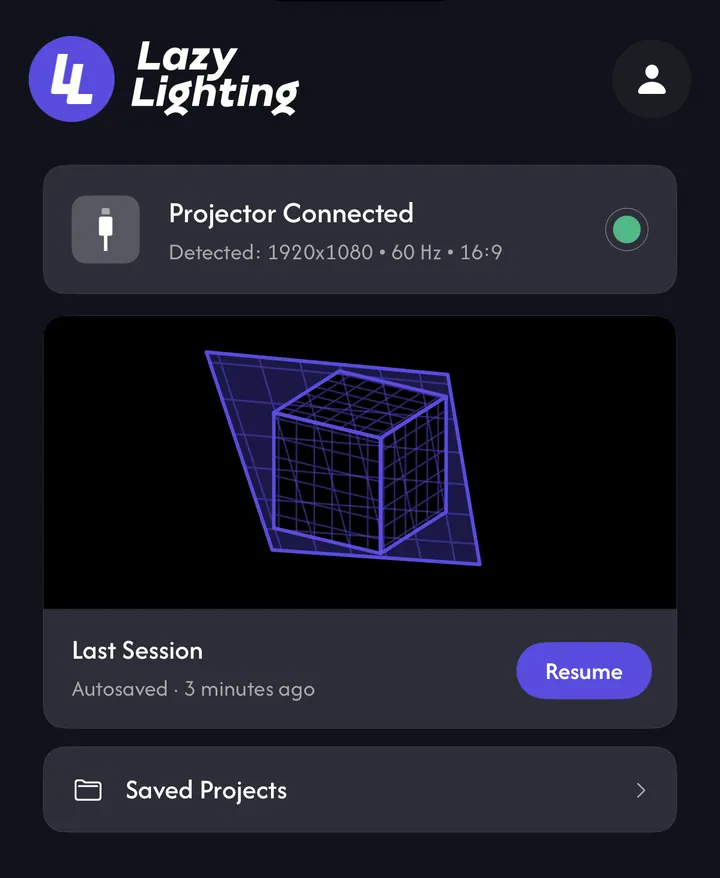
Lazy Lighting saves your work after every change. On Home, the Last Session card shows your latest project — tap Resume to carry on exactly where you left off. New Project starts from an empty canvas.
Save a named project
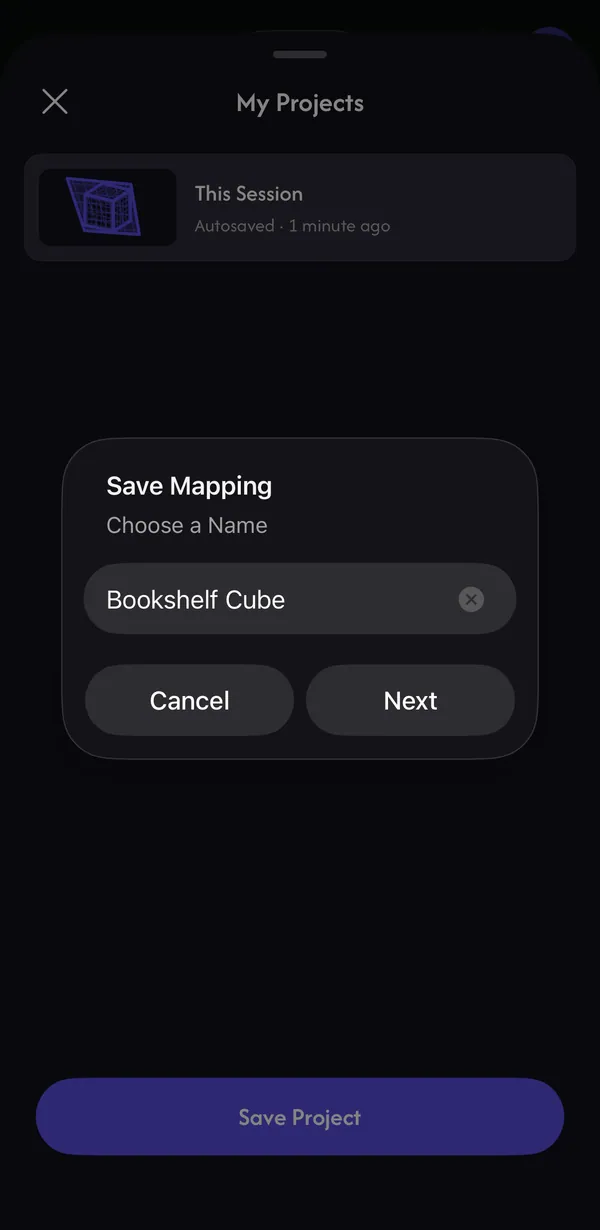
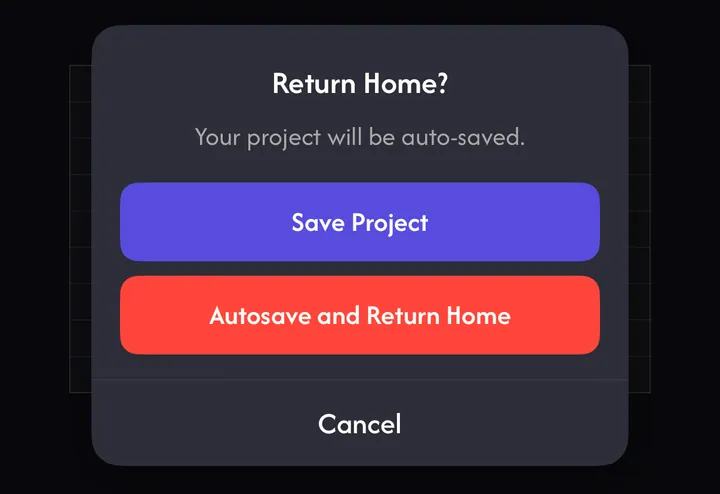
Leaving with menu ☰ → Return Home also offers Save Project. Named projects are a Pro feature; autosave is free.
- 1
In Mapping or Play, tap the folder icon to open My Projects.
- 2
Tap Save Project, type a name and tap Next.
- 3
If the name exists, choose Overwrite or Save as Copy.
Open, duplicate and delete
Tap Saved Projects on Home (or the folder icon) to see your projects, newest first. Tap one to open or overwrite it; it opens in Mapping or Play, wherever you saved it. Swipe left to delete, swipe right to duplicate. Projects are stored on your device.
Settings
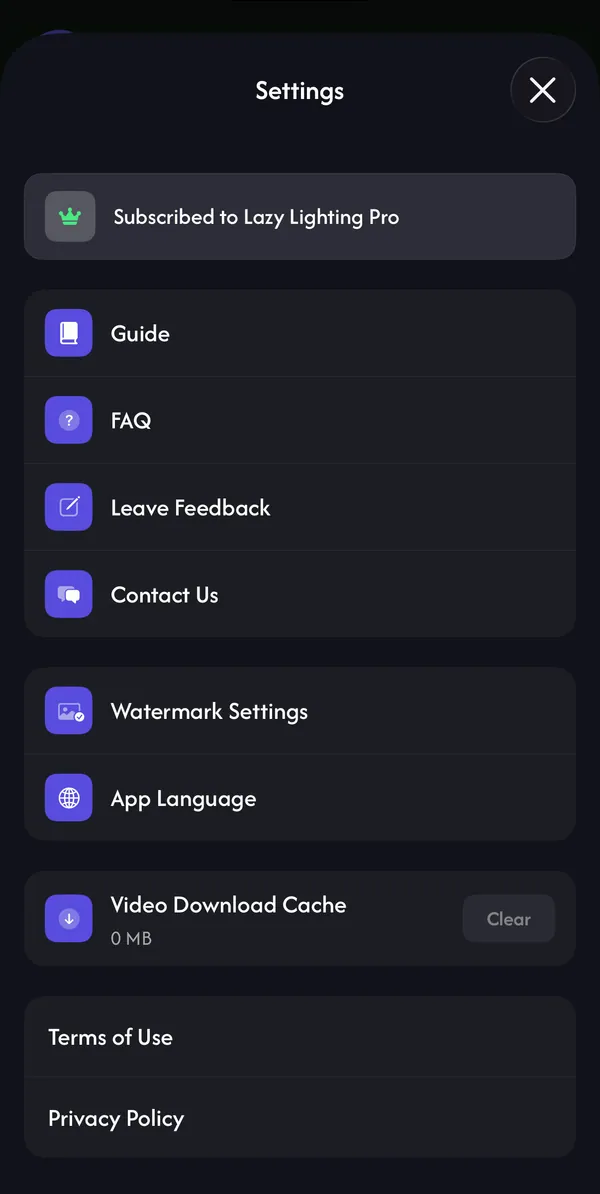
Tap the person icon on Home:
- Guide / FAQ — this help center.
- Leave Feedback / Contact Us — message the team or email support@lazylighting.com.
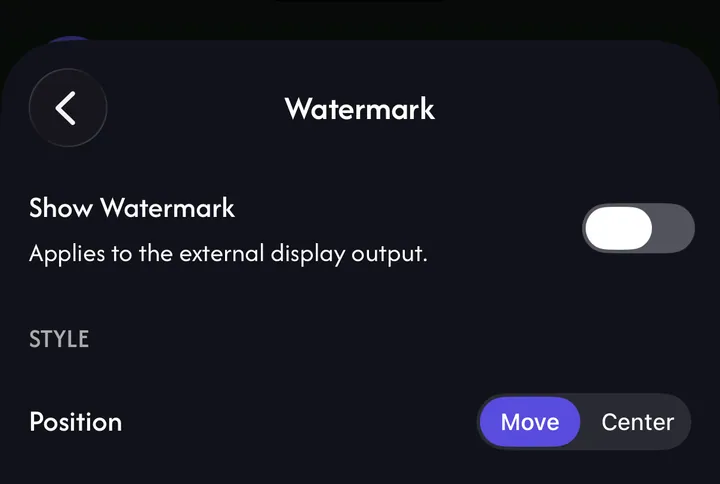
- Watermark Settings — show or move the watermark on the projector.
- App Language — opens iPhone Settings, where you can pick the app's language.
- Restore Purchase — for free accounts that already bought Pro.
- Video Download Cache — free up space taken by downloaded video loops. Projects and your own videos aren't affected.
General Settings
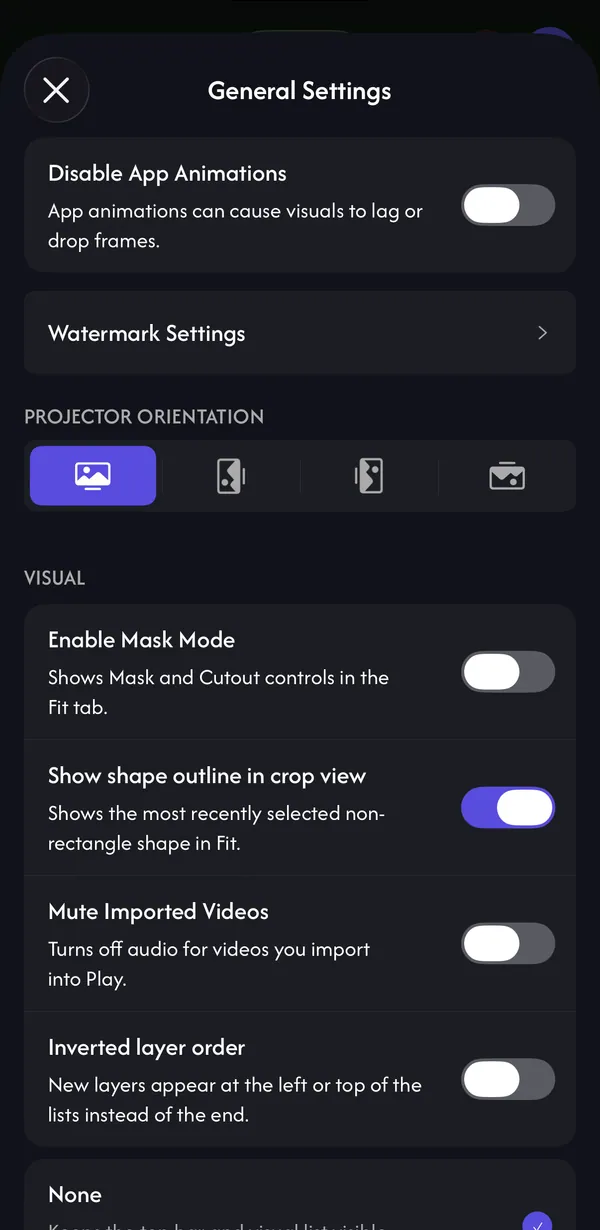
Open menu ☰ in Mapping or Play → General Settings:
- Disable App Animations — turn off interface animations if visuals stutter.
- Projector Orientation — Default, Vertical Left, Vertical Right or Upside Down, for a projector on its side or on the ceiling.
- Enable Mask Mode — shows Mask and Cutout on the Fit tab.
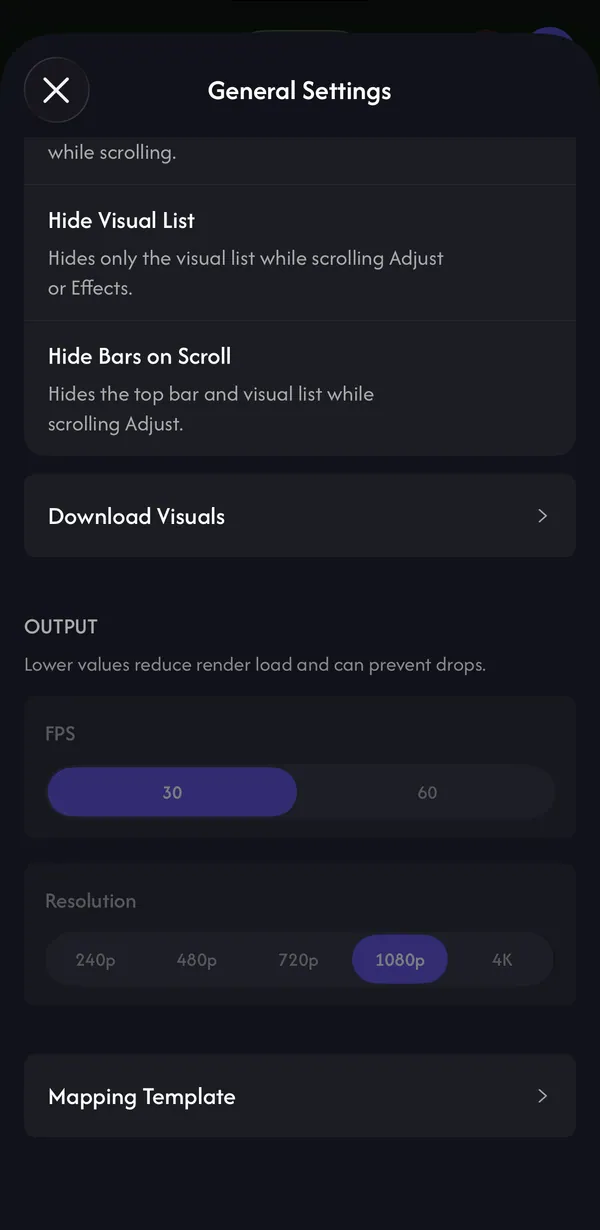
- Show shape outline in crop view, Mute Imported Videos, Inverted layer order, On Scroll — small workflow preferences.
- Download Visuals — download every video loop ahead of a show.
- Output — FPS (30 or 60) and Resolution (240p to 4K). Lower values reduce the load and can prevent dropped frames.
- Mapping Template — export a checkerboard image of your mapping to Photos or share it.
The watermark
On the free plan, the projector shows a faint Lazy Lighting logo. In Watermark Settings, choose Move (it jumps to a new spot every few seconds) or Center. Pro removes it: switch off Show Watermark.
Common questions
Do I lose my work if I close the app?
No. Every change is autosaved; tap Resume on the Last Session card to continue.
Is saving projects free?
Autosave and Resume are free. Saving and opening named projects needs Pro.