Visuals: adding, adjusting, cropping and masking
Choose what plays inside your shapes — generated visuals, video loops, your own media — then adjust, crop and mask it.
· Screenshots show the iPhone app.
The Play screen
Play is where your shapes come alive. The preview at the top shows what the projector shows — the buttons beside it switch between the projector view, the visual on its own, or both, and the handle below it resizes it.
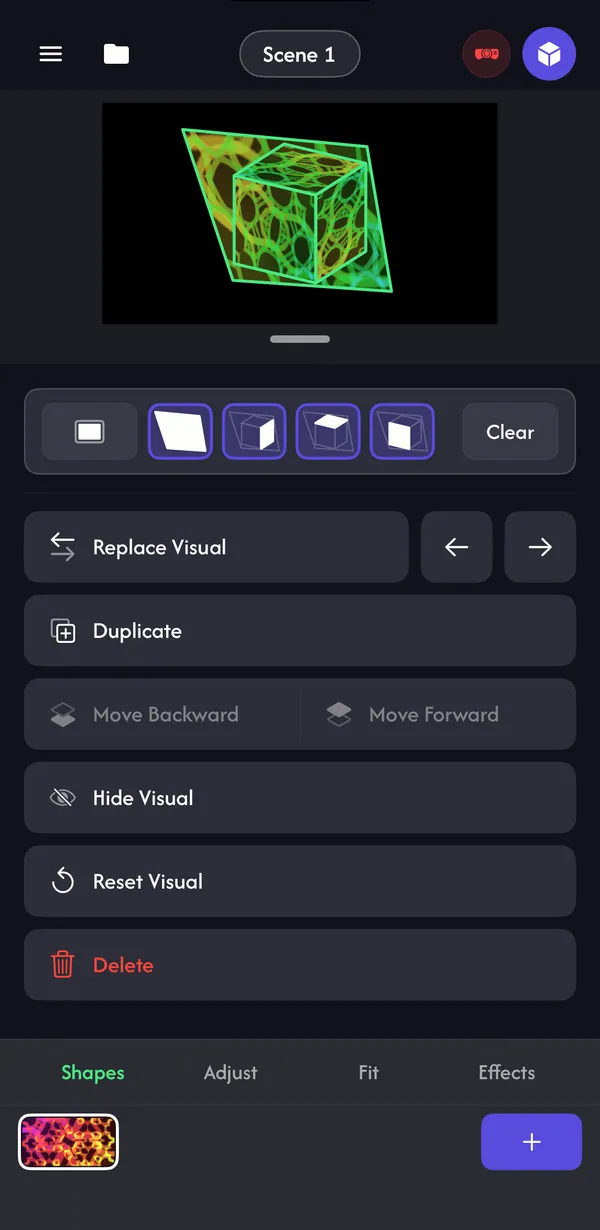
Below are four tabs — Shapes, Adjust, Fit and Effects — for the visual selected in the strip along the bottom. The pill at the top (Scene 1) opens your scenes; the cube button takes you back to Mapping.
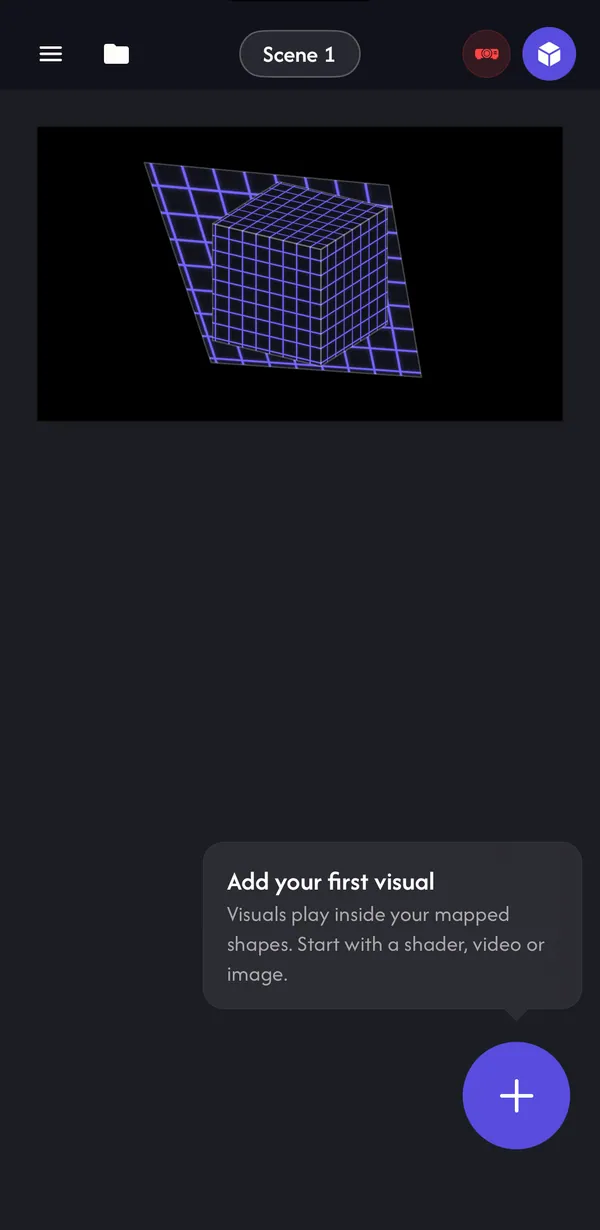
Add a visual
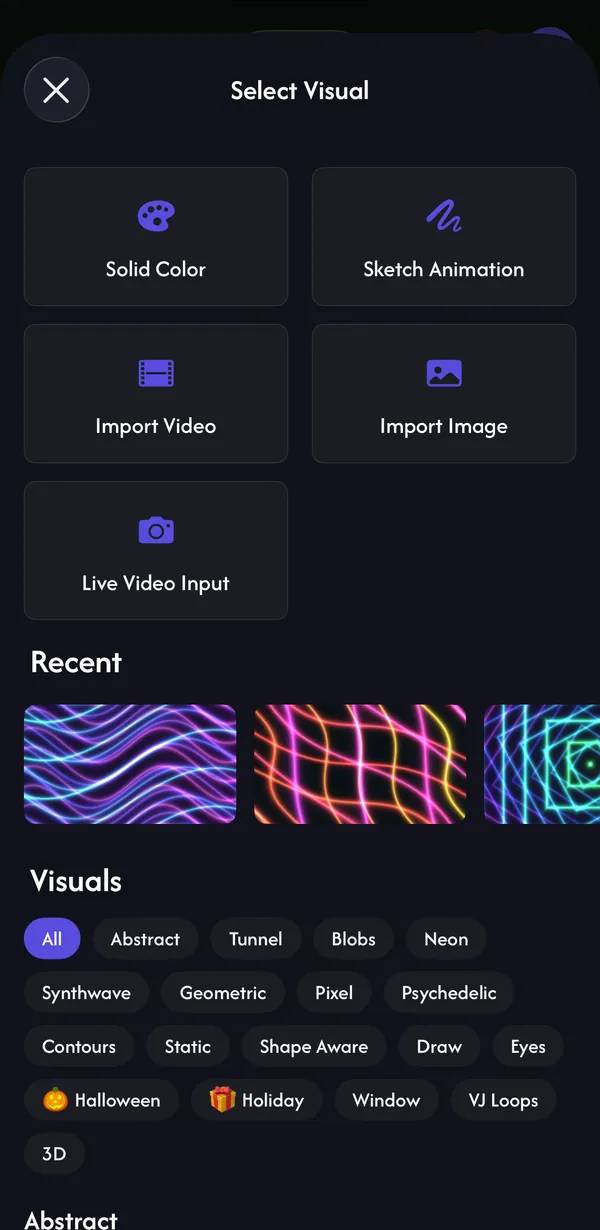
Tap + to open Select Visual. Pick one of:
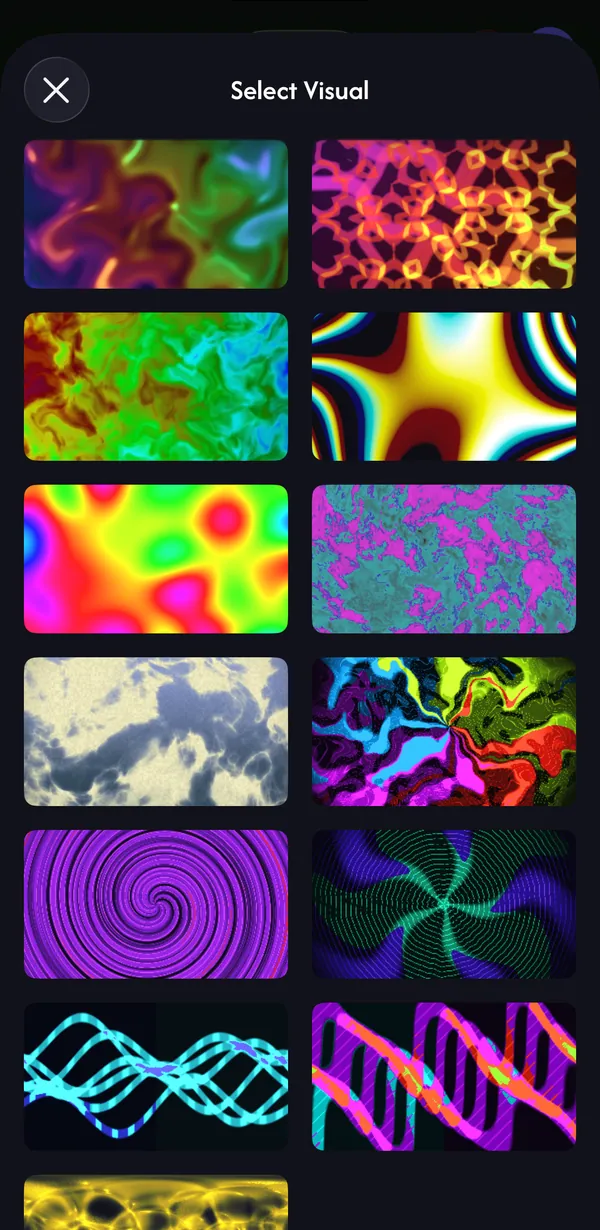
- Visuals — 195 to choose from: 76 generated live (they never loop or repeat) and 119 video loops, in categories like Abstract, Tunnel, Neon, Synthwave, Geometric, Psychedelic, 3D, Halloween, Holiday, Window and VJ Loops. Free users get a Free filter.
- Import Video / Import Image — your own media from Photos (free).
- Solid Color — a flat colour, great for washes and testing.
- Sketch Animation — draw frame-by-frame animations with brushes and onion skin.
- Live Video Input — the front, back or an external camera, or video from another device (Pro).
Choose which shapes it fills
A new visual fills every shape (switch off Auto-assign New Visuals in the menu ☰ to change that). On the Shapes tab, tap shape thumbnails to add or remove them, or use All / Clear. The first button, Background, fills everything outside your shapes. You can also tap shapes directly in the preview.
If you see the orange Tap shapes to apply visuals pill, the selected visual isn't on any shape yet.
- Replace Visual — swap it for another while keeping its shapes, crop and effects. The arrows step to the previous or next visual.
- Duplicate, Hide Visual, Reset Visual — Reset returns its settings, crop and effects to the defaults.
- Move Backward / Move Forward — visuals stack, newest on top; move them to change which one wins where they overlap.
- Delete — removes it right away (no confirmation).
Adjust and presets
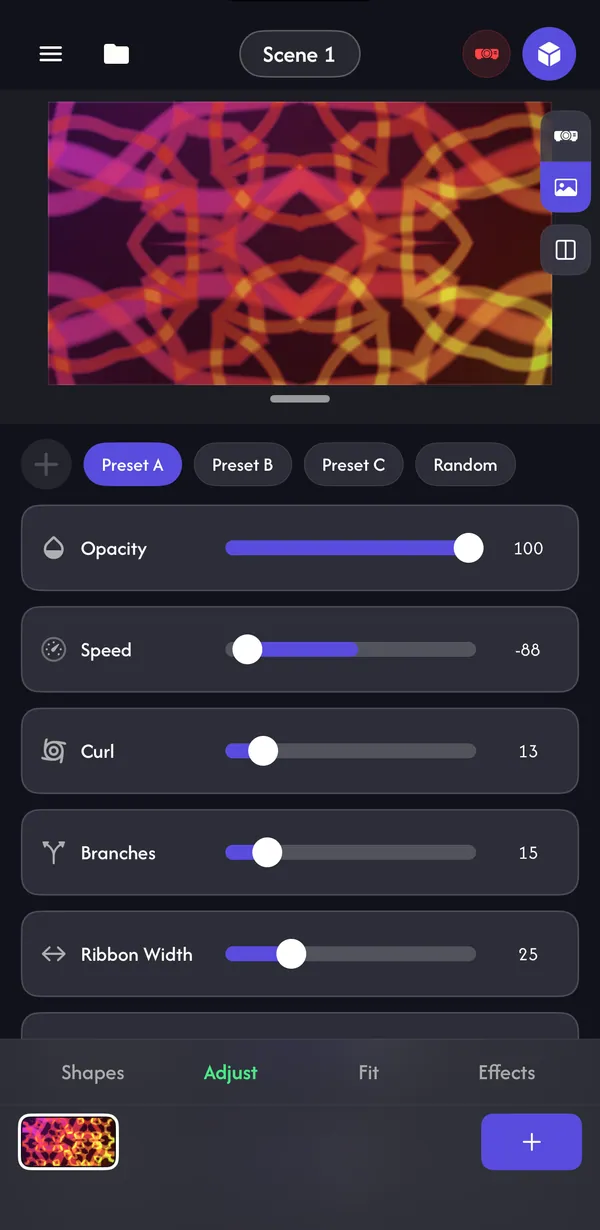
The Adjust tab holds Opacity and the visual's own settings (speed, colour, scale and so on). Each visual has Preset A, B and C to start from, and Random for a surprise.
Like what you made? Tap + in the preset row to save it as a new preset (D, E…). Long-press a preset to update or delete it, or restore the originals. Presets are saved on your device for that visual, so they're there in every project.
Make a setting move on its own
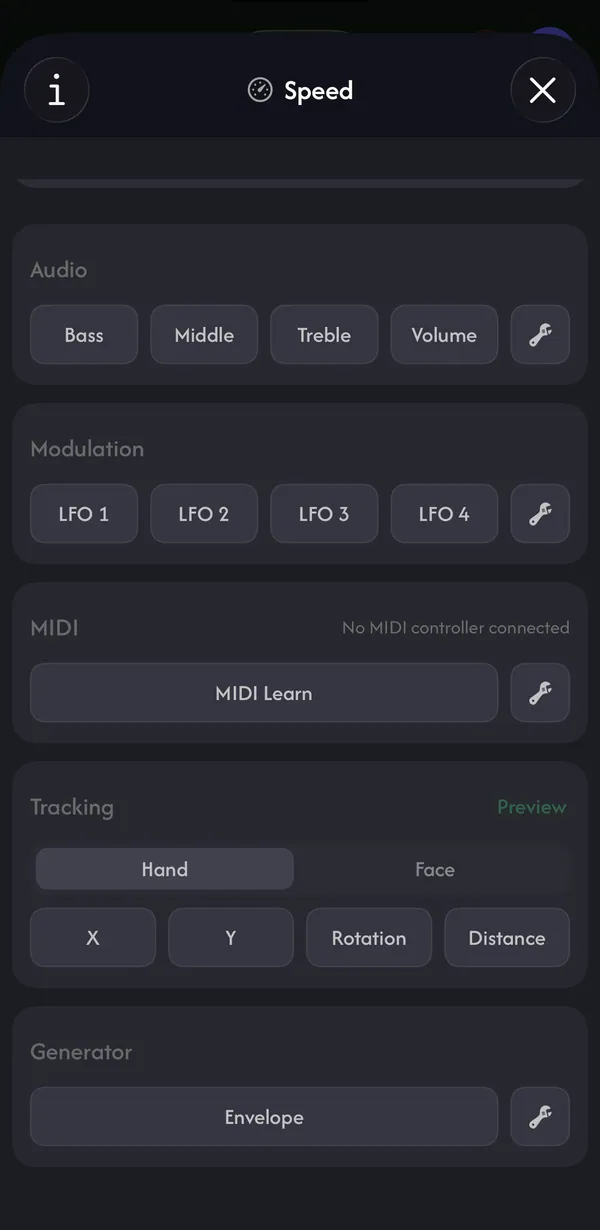
Tap any setting row (not just its slider) to open it. Besides setting a value, you can hand the setting to a source that moves it for you: Audio (Bass, Middle, Treble, Volume), an LFO, a MIDI knob, hand or face tracking (iPhone and iPad), or an Envelope that fires on beats. Set the range with the two handles, Flip it, or Clear it. This is a Pro feature.
Crop and fit
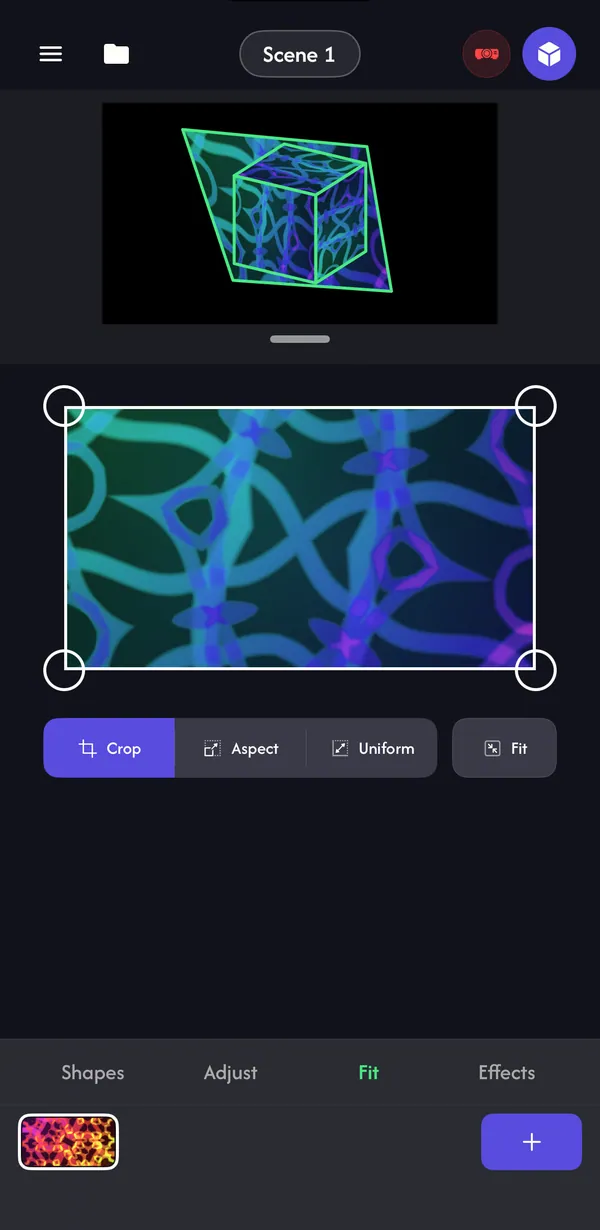
On the Fit tab, drag the crop box to choose which part of the visual fills the shape. Crop moves corners freely, Aspect keeps the proportions and Uniform scales from the centre. Fit switches between the full picture and a square (or, for your own videos, their original frame). On iPad, tap Edit Crop on the preview instead.
Masks and cutouts
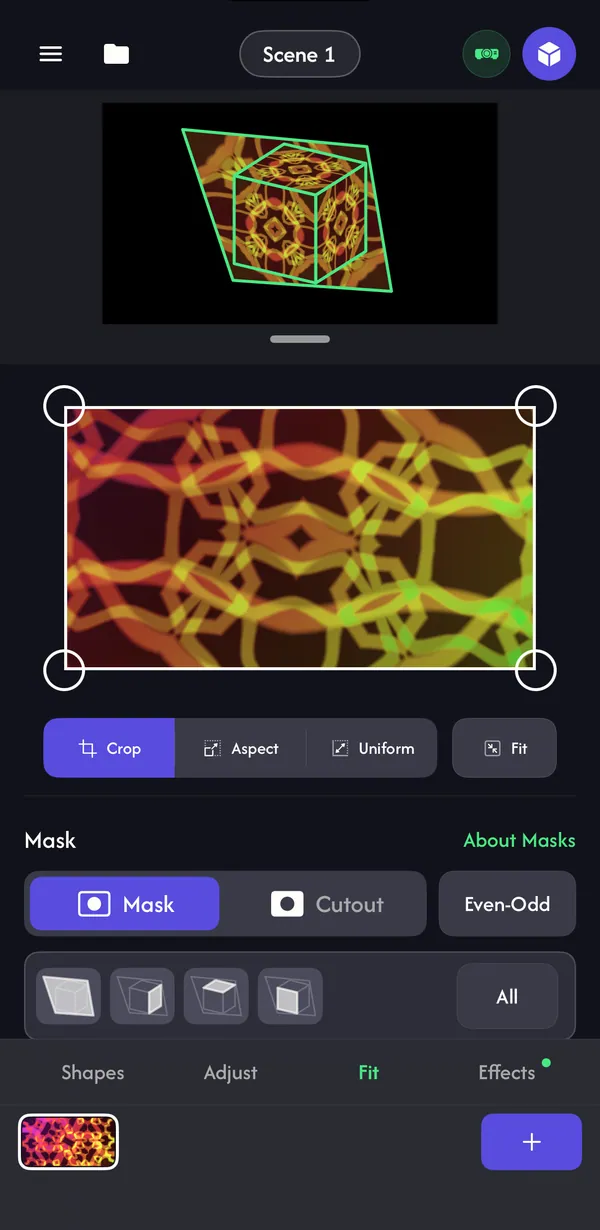
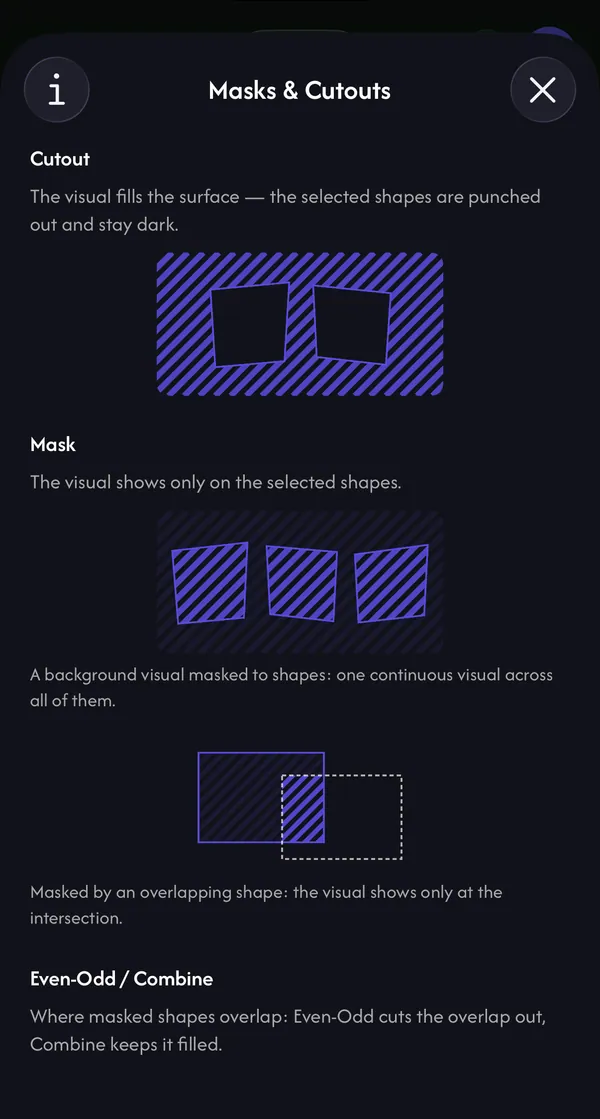
Masks decide where a visual is allowed to show. Turn them on once: menu ☰ → General Settings → Enable Mask Mode. A Mask section then appears on the Fit tab.
- Mask — the visual shows only on the shapes you select. Put one visual on Background and mask it to several shapes, and it flows across all of them as one picture.
- Cutout — the visual fills everything and the shapes you select are punched out and stay dark — great for windows, doors and keeping light off a TV.
- Even-Odd / Combine — where masked shapes overlap, Even-Odd cuts the overlap out and Combine keeps it filled.
Scenes
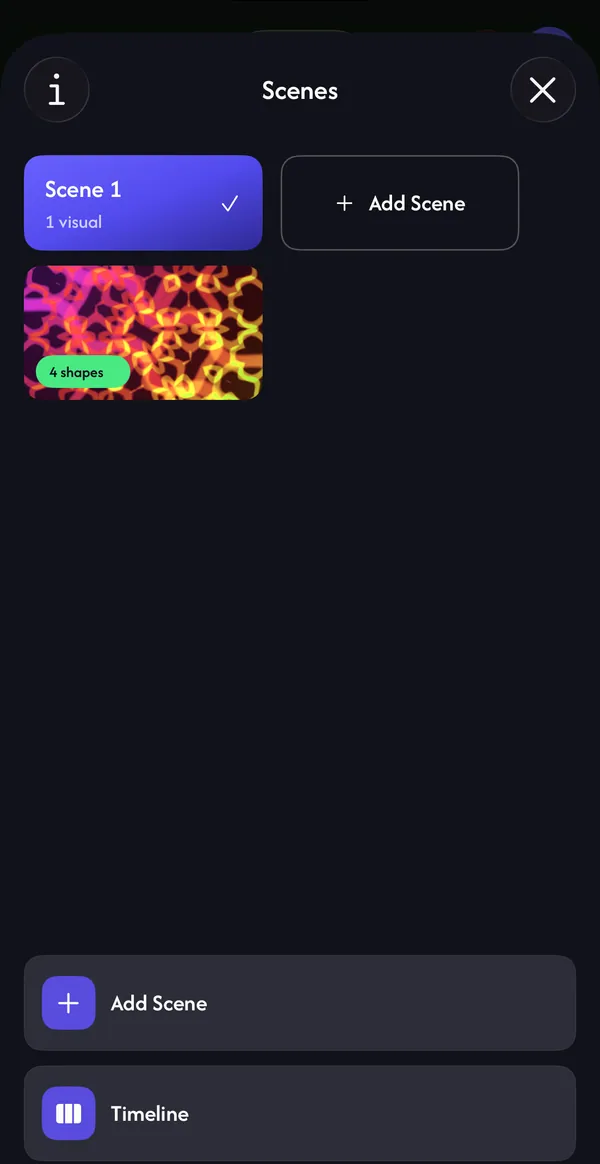
A scene is a complete look: every visual, which shapes it fills, its settings and effects. Tap the Scene 1 pill to open Scenes, Add Scene to start a new empty one, and tap a scene to switch to it live. Changes always save into the scene you're in.
Free and Pro visuals
The free plan includes 22 visuals plus Solid Color, and you can always import your own videos and photos. Pro visuals show a crown; Pro unlocks all 195, Live Video Input and the depth visuals.
Common questions
Can I use my own videos and photos?
Yes. Tap + → Import Video or Import Image to use anything from Photos. It's free.
Why isn't my visual showing on the projector?
It may not be on any shape (look for the orange Tap shapes to apply visuals pill), it may be hidden or at zero opacity, or a mask or another visual on top may be covering it.
Can a visual cover the whole wall, not just my shapes?
Yes. Select Background on the Shapes tab and the visual fills everything outside your shapes too.