Wireless casting with Lazy Lighting Link
Send your projection over Wi-Fi to a projector or TV running Android TV or Google TV, or to a Chromecast with Google TV — no cable.
· Screenshots show the iPhone app.
What Lazy Lighting Link is
Lazy Lighting Link is a companion app for projectors and TVs with Android TV or Google TV, and for a Chromecast with Google TV plugged into any projector's HDMI port. Your phone streams the projector output to it over Wi-Fi in 1920×1080, so you can place the projector anywhere without running a cable to it.
For the tightest sync with music and the lowest delay, a cable is still best. Link is ideal for setups where a cable can't reach.
Before you start
- On the projector or TV (or the Chromecast with Google TV plugged into it), install Lazy Lighting Link from the Google Play Store and open it on its Live Cast tab.
- Connect the phone and the projector to the same Wi-Fi network. Guest networks, hotel Wi-Fi and VPNs often block devices from seeing each other.
- When iOS asks, allow Lazy Lighting to find devices on your local network. Without it the app can't find your projector.
Connect
- 1
On Home, tap Connect Your Projector → Wireless. (In Mapping or Play, tap the red projector button at the top, then the wireless option.)
- 2
Stay on the Lazy Lighting Link tab. Your projector appears under Available Projectors as Lazy Lighting Link with the TV's name.
- 3
Tap it. The first time, the TV shows a four-digit PIN: type it in and tap Pair. The TV remembers your phone for about 30 days.
- 4
You'll see Connection successful, the projector button turns green and the projector shows your mapping.
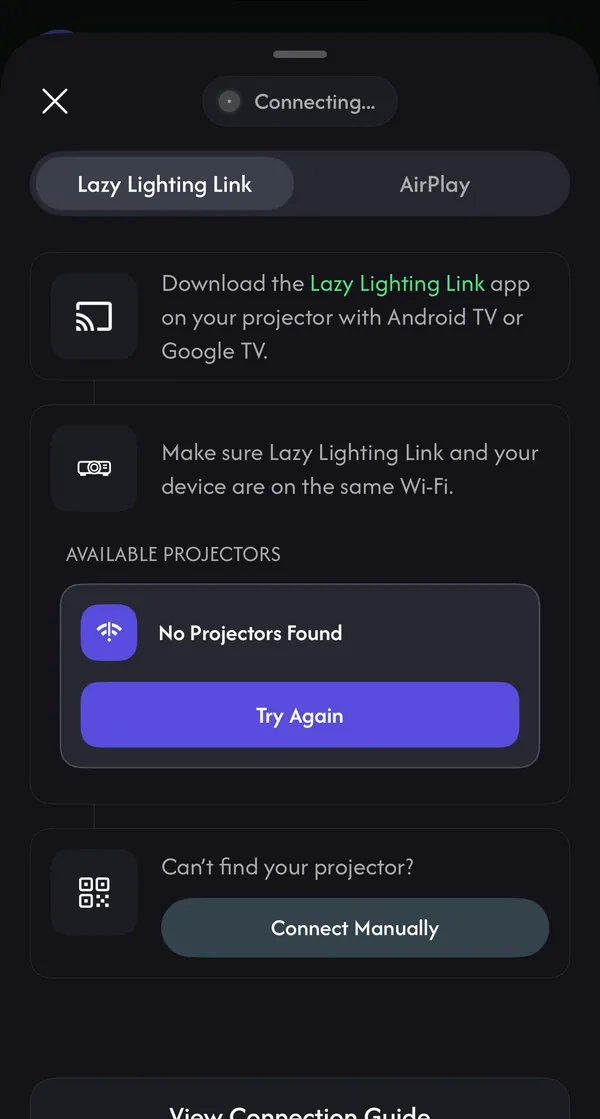
Projector not in the list? Connect manually
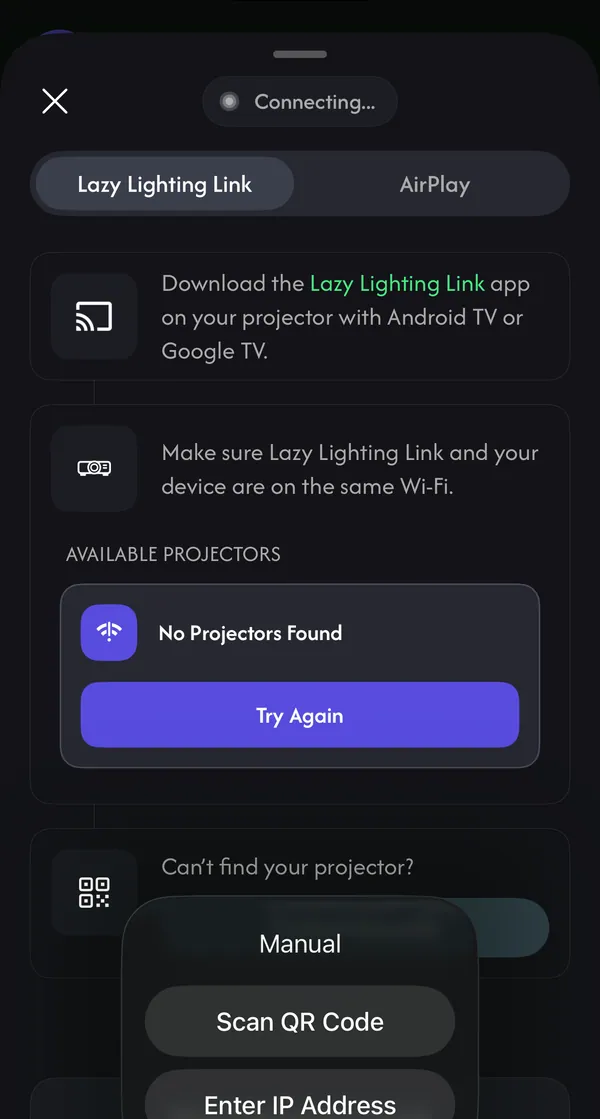
Tap Connect Manually under Can't find your projector?, then choose:
- Scan QR Code: point the camera at the QR code the TV app shows under Live Cast → Manual Connection.
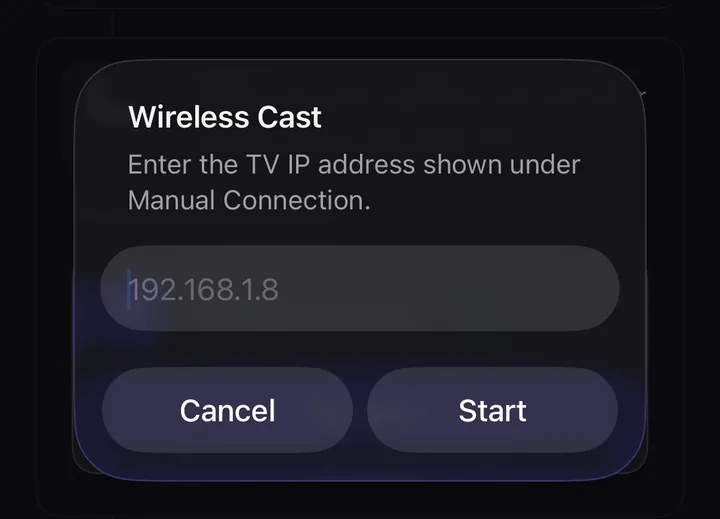
- Enter IP Address: type the address shown on the TV under Manual Connection (for example 192.168.1.8) and tap Start.
Stop casting
Tap the green projector button at the top of Mapping or Play and choose End Connection.
Play it without your phone: Link Playback
Live Cast needs your phone for as long as the show runs. Playback sends a finished video to the TV instead: Lazy Lighting Link saves it with its projection tuning and plays it on its own, so a window or porch display can run all evening after you put the phone away. Playback is part of Pro.
It needs Lazy Lighting Link on an Android TV or Google TV projector, or on a Chromecast with Google TV plugged into the projector, on the same Wi-Fi as your phone.
- iPhone and iPad: while Live Casting, tap the green projector button at the top of Play and choose Switch to Playback. Lazy Lighting renders your timeline into a video and sends it to the same TV. When Connected to TV appears, you can close the app.
- From Export Timeline (iPhone, iPad and Android): open Playback in the Link app, then on your phone open the timeline, tap export and tap Send to TV on the Export Timeline screen. Pick your TV; the first time, type the four-digit PIN the TV shows.
- On the TV: press Back on the remote during playback to open the Project menu. Loop plays continuously from the beginning; Static holds the first frame until you press OK. Fine Tune moves, resizes and nudges the corners into place.
- Next time: open Saved in the Link app and pick the show from Saved Playbacks. It comes back with its video and projection tuning, no phone needed.
If it won't connect
- No Projectors Found: check both devices are on the same Wi-Fi and Link is open on its Live Cast tab, then tap Try Again — or use Connect Manually.
- Local Network Access Is Off: tap Open Settings and turn on Local Network for Lazy Lighting (iPhone Settings → Lazy Lighting).
- Could not reach the TV: keep the TV app open, put both devices on the same network, and switch off any VPN.
- The TV is busy: go back to the TV app's Home or Live Cast screen and try again.
- Another device is already casting to this TV: stop the cast on the other phone first.
- Too many pairing attempts: wait a minute, then try the PIN again.
- Stuttering: move closer to the router, use 5 GHz Wi-Fi, or switch to a cable.
Prefer AirPlay?
Any AirPlay projector, Apple TV or AirPlay TV works without a companion app: open the Wireless sheet's AirPlay tab and follow the steps, or use Control Center → Screen Mirroring.
AirPlay and cable setup →Common questions
Which projectors work with Lazy Lighting Link?
Projectors and TVs that run Android TV or Google TV and can install apps from Google Play. For any other projector with an HDMI input, plug in a Chromecast with Google TV and install Link on it.
What resolution does wireless casting use?
1920×1080 (1080p), streamed over your Wi-Fi network.
Do I need to pair every time?
No. After you enter the PIN once, the TV trusts your phone for about 30 days.
Can the projector play my show without my phone?
Yes, with Pro. Switch to Playback (iPhone and iPad) or Send to TV from Export Timeline saves a video of your show in the Lazy Lighting Link app, which keeps playing it after you close Lazy Lighting.