Audio reactivity, tempo & LFOs
Make any setting react to music, follow the beat, move on its own with an LFO, or fire on every hit.
· Screenshots show the iPhone app.
How it works
Every setting with a slider — a visual's speed or colour, its opacity, an effect's amount — can be driven by a source instead of your finger. Tap the setting's row to open it, then pick one source: Audio, an LFO, MIDI, hand or face Tracking (iPhone and iPad), or an Envelope. One source drives a setting at a time. Reactive features are part of Pro.
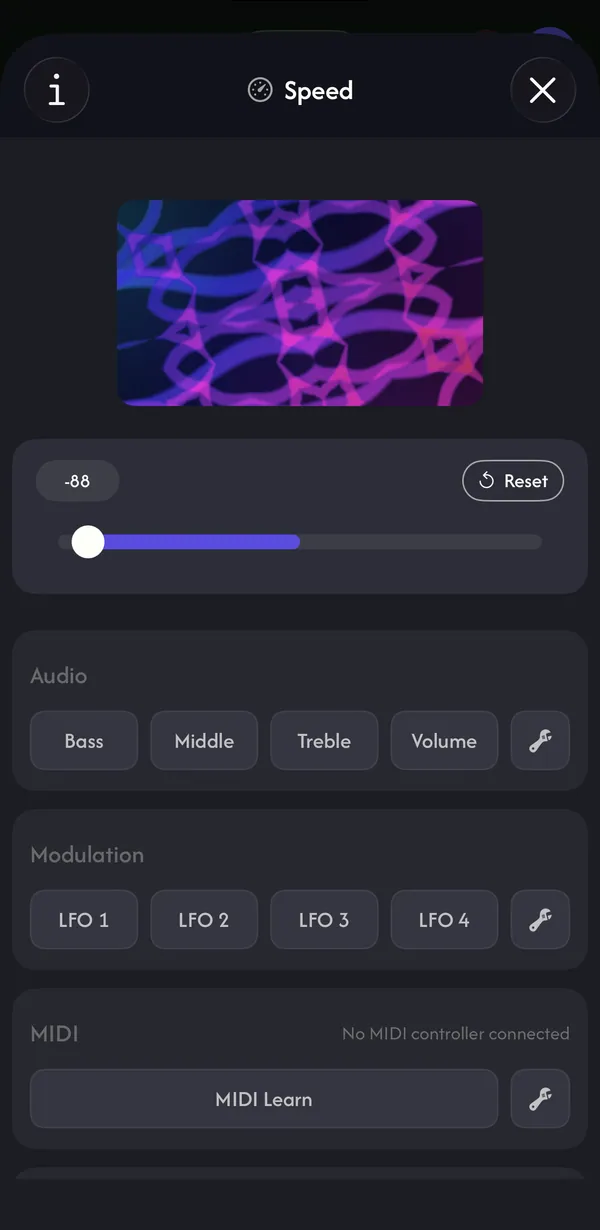
Make a setting react to music
- 1
In Play → Adjust (or on an effect), tap the setting you want to move — for example Speed.
- 2
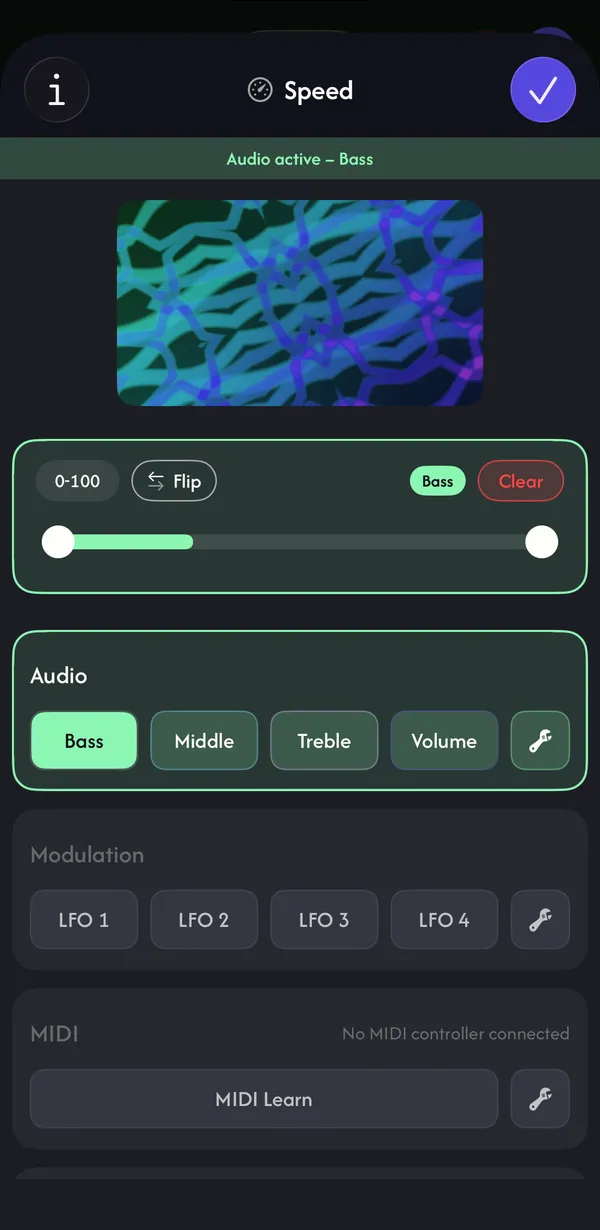
Under Audio, tap Bass, Middle, Treble or Volume. Allow the microphone when asked.
- 3
Drag the two handles to set the range the music sweeps between. Flip reverses it; Clear removes the link.
- 4
Tap ✓. The strip at the top reads, for example, Audio active – Bass.
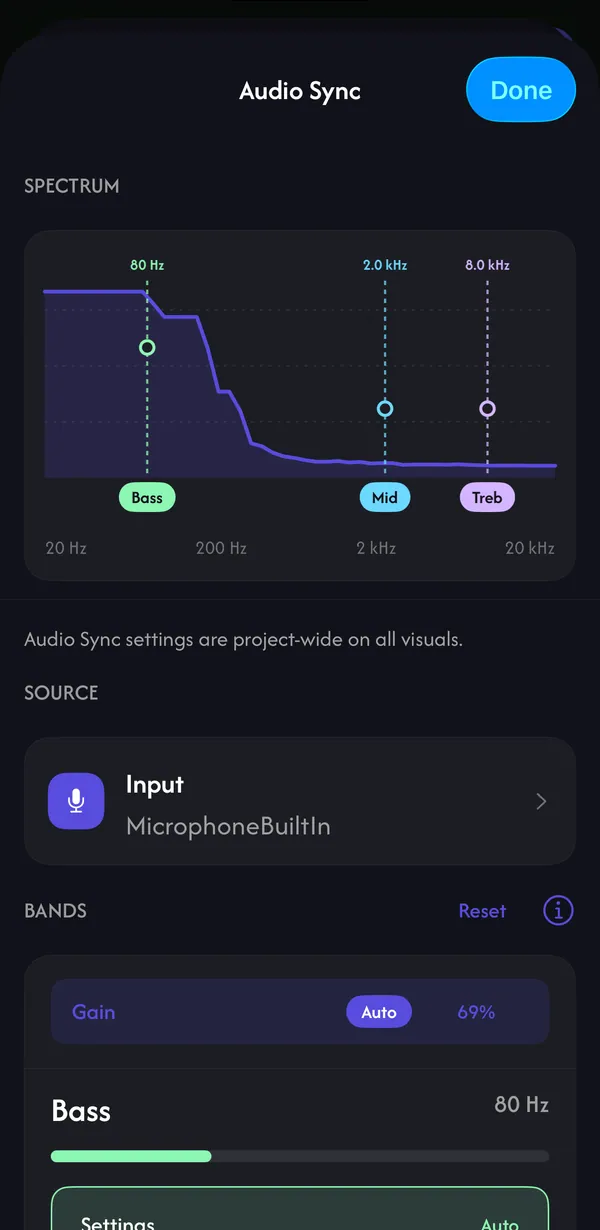
Tune the audio bands
Tap the wrench next to Audio (or Configure under Audio Bands in the Reactive menu) to open Audio Sync. It applies to every visual in the project.
- Spectrum — drag the Bass, Mid and Treble handles to the frequencies that matter in your music (defaults 80 Hz, 2 kHz and 8 kHz).
- Input — choose the microphone or a connected audio input.
- Gain — Auto adapts to how loud the room is; switch it off to set it yourself.
- Band Settings — Gate, Attack, Release, Dynamics and Sustain shape how each band moves. Leave them on Auto unless the reaction feels too jumpy or too slow.
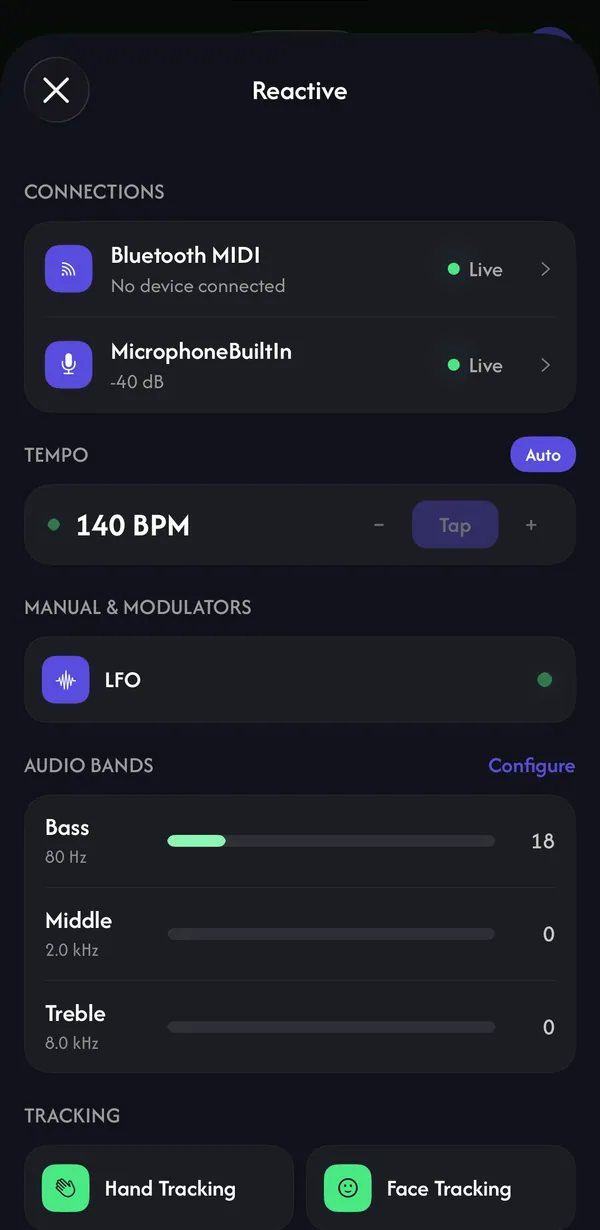
Tempo (BPM)
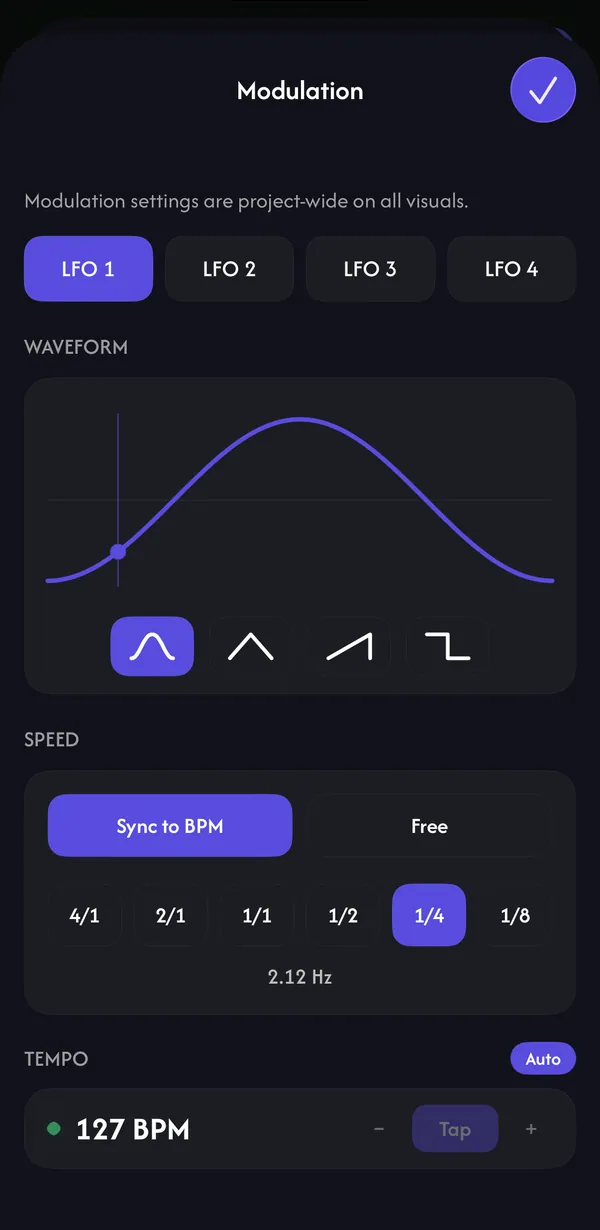
Open the menu ☰ in Play → Reactive. Under Tempo, Auto listens for the beat through the microphone. Tap Tap in time with the music to set it yourself, or use − and + (30–240 BPM). Changing the BPM by hand turns Auto off. LFOs set to Sync to BPM follow this tempo.
LFOs: movement without music
An LFO moves a setting back and forth by itself. There are four (LFO 1–4); pick one in a setting's Modulation section. Tap the wrench next to it to choose the waveform (Sine, Triangle, Saw or Square) and the speed: Sync to BPM (4/1 to 1/8 notes) or Free (0.05–5 Hz).
Link several settings to the same LFO and they move in lockstep.
Envelopes: hits and flashes
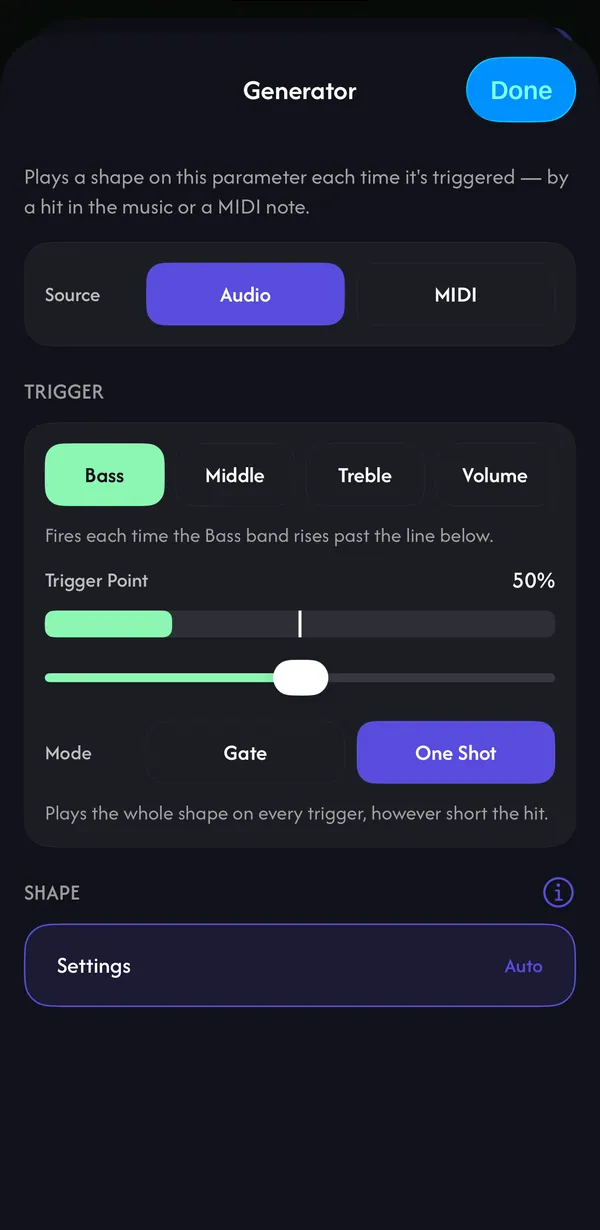
An Envelope plays a shape on a setting each time it's triggered — perfect for flashes on a kick drum. In a setting's Generator section, tap Envelope, then the wrench:
- Source — Audio (a band rising past the Trigger Point) or MIDI (a note or CC from your controller).
- Mode — One Shot plays the whole shape on every hit; Gate holds while the trigger stays on.
- Shape — Attack, Decay, Sustain and Release, like a synth envelope.
Hand and face tracking (iPhone and iPad)
In a setting's Tracking section, choose Hand or Face and an axis — X, Y, Rotation or Distance (hand only). The front camera follows you and the setting moves with you. Preview opens the camera view, where you can show the visual and tune the input and output ranges.
Common questions
Why don't my visuals react to music?
Check that the setting is linked to an Audio band (the strip says Audio active), that Lazy Lighting has microphone access (iPhone Settings → Lazy Lighting → Microphone), and that the right Input is selected in Audio Sync. Applying a preset or Random also clears audio links.
Do I need special hardware for audio reactivity?
No. The built-in microphone is enough. You can also choose a connected audio input in Audio Sync.
Can it follow the BPM of my music?
Yes. Tempo on Auto detects the beat from the microphone, or tap the tempo in yourself. LFOs on Sync to BPM follow it.