MIDI controllers
Control Lazy Lighting with a USB MIDI controller (or Bluetooth on iPhone and iPad): map knobs and faders to settings, and buttons to scenes.
· Screenshots show the iPhone app.
Connect a controller
When Lazy Lighting recognises a connected controller, Home shows MIDI controller connected and a MIDI button appears at the top of Play. Tap either to open the MIDI Monitor and check what the controller sends.
- USB: plug a class-compliant MIDI controller in with the right adapter for your device. It's ready straight away.
- Bluetooth (iPhone and iPad): in Play, open menu ☰ → Reactive → Bluetooth MIDI → Find MIDI Device and pick your controller.
Map a knob or fader to a setting
- 1
Tap the setting you want to control (on the Adjust or Effects tab).
- 2
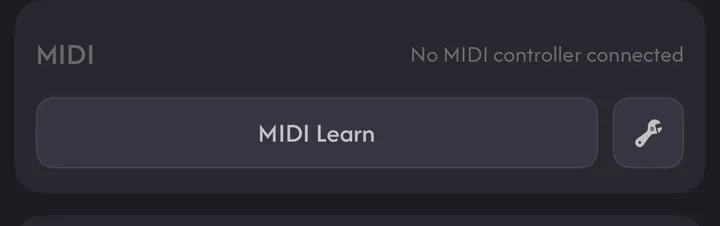
Under MIDI, tap MIDI Learn and move the knob or fader. The setting shows MIDI — CC 21 (your number).
- 3
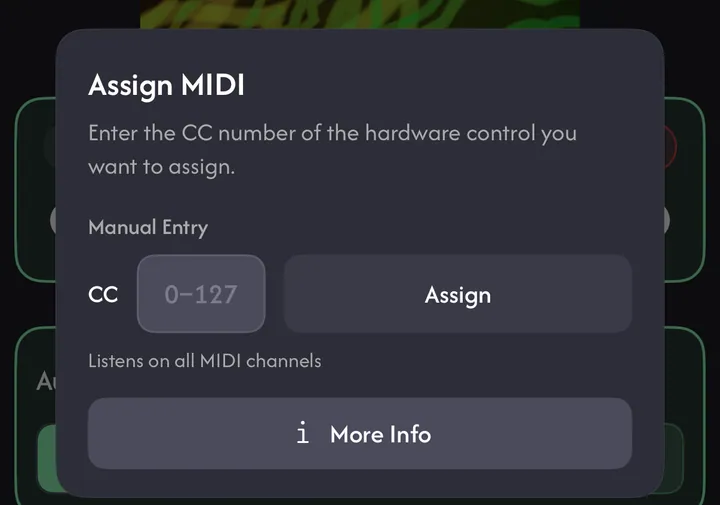
Or tap the wrench → Assign MIDI, type the CC number (0–127) and tap Assign.
MIDI Monitor
The monitor shows the last control you moved (with its type and channel) and a list of recent messages — the quickest way to find a control's CC number. Novation Launch Control XL, Korg nanoKONTROL2, Akai APC mini mk2 and Behringer X-Touch Mini also get a live picture of the controller.
Common questions
Which MIDI controllers work?
Any class-compliant USB MIDI controller that sends CC messages, or a Bluetooth MIDI controller on iPhone and iPad. The Launch Control XL, nanoKONTROL2, APC mini mk2 and X-Touch Mini also get a live view in the MIDI Monitor.
Is MIDI control free?
MIDI control of settings is part of Pro, together with audio reactivity and LFOs.