Scenes, timeline & video export
Save complete looks as scenes, switch between them live, sequence them on a timeline with music, and export a video.
· Screenshots show the iPhone app.
What a scene is
A scene is a snapshot of everything in Play: the visuals, which shapes they fill, their settings, crops and effects. All scenes share the same mapping, so you can switch the whole look of your projection in one tap.
Create and switch scenes
- 1
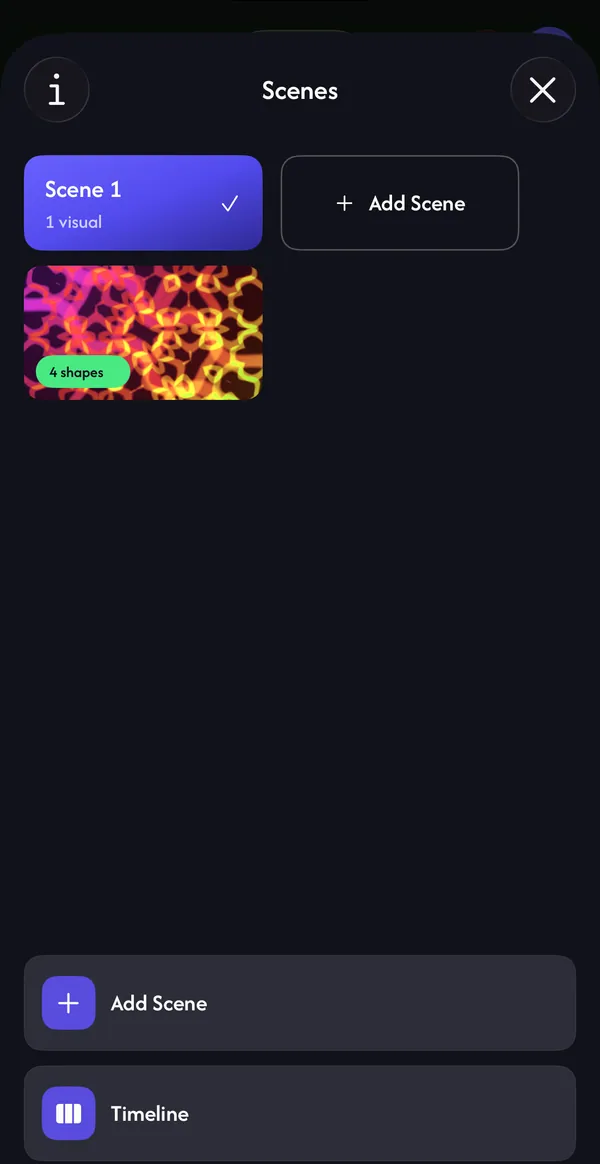
In Play, tap the scene pill at the top (Scene 1).
- 2
Tap Add Scene. A new, empty scene opens — add visuals to it as usual.
- 3
Open Scenes again and tap any scene to switch to it, on the phone and the projector. Long-press a scene to open or delete it.
Switch scenes from a controller
Map buttons on a MIDI controller to Switch Scene (Forward) and Switch Scene (Backward) to change scenes without touching the phone.
MIDI controllers →Build a timeline
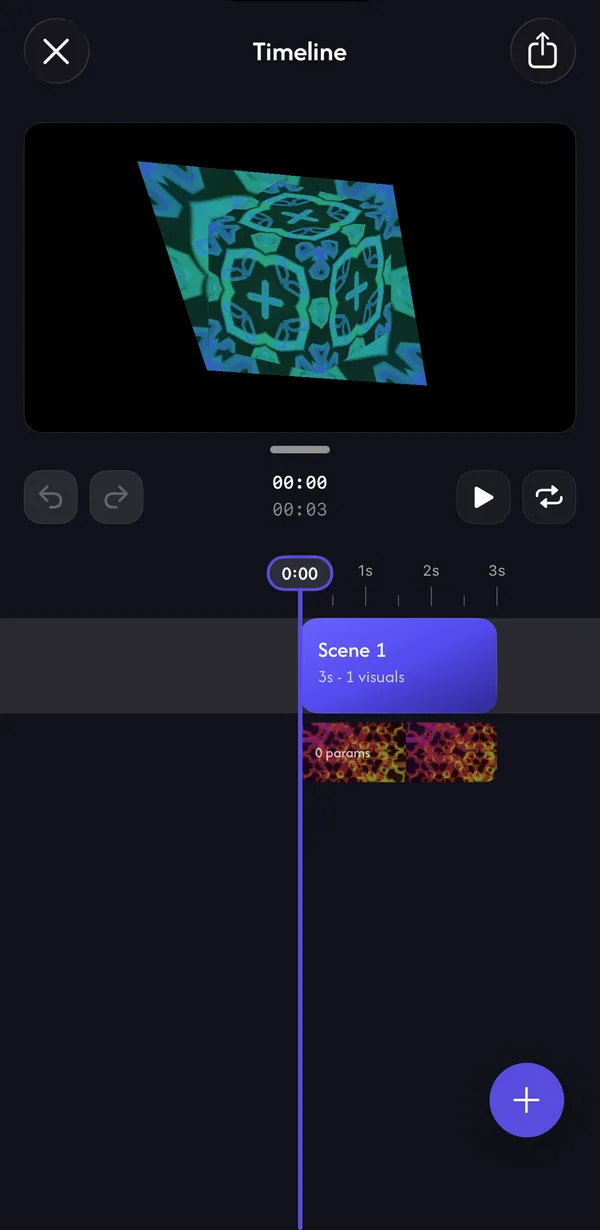
Open Scenes and tap Timeline. Each scene becomes a clip you can arrange in time.
- + (Add to Timeline) — add scenes, or Music to import an audio file to play along.
- Select a clip — Edit its duration, Split it at the playhead, Duplicate it, Color it or Delete it. Clips start at 3 seconds (or the length of the longest video in the scene).
- Transitions — tap the badge between two clips: None (cut), Fade (dip to black) or Dissolve (crossfade).
- Play and loop — preview the whole sequence with the transport buttons; undo and redo work while the timeline is open.
Automate settings over time
Select a visual's row under a clip and tap Add Param to choose which shapes it fills during that clip or which settings to automate. Tap a lane to add points, drag them, drag between two points to curve the line, and double-tap a point to remove it. Flatten resets a lane.
Export a video
- 1
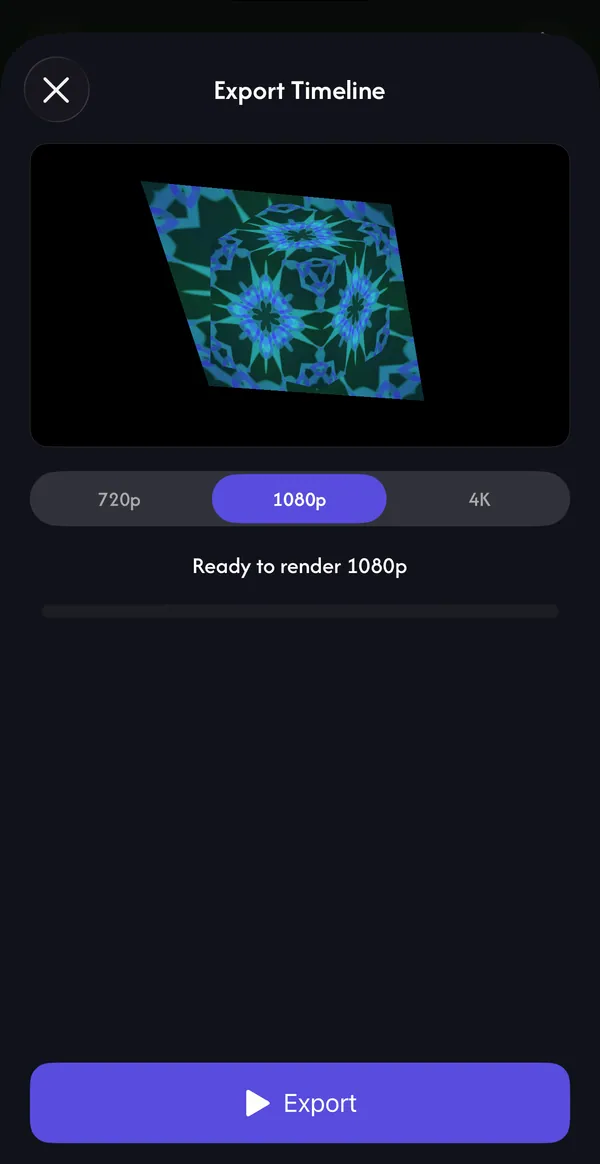
In the timeline, tap the share button at the top right.
- 2
Choose 720p, 1080p or 4K and tap Export. Keep the screen open while it renders — closing it cancels.
- 3
Tap Download to save the MP4 to Photos, or Send to TV to play it in Lazy Lighting Link's Playback.
Common questions
Do scenes have their own shapes?
No. Every scene uses the same mapping; scenes change what plays on the shapes.
Where does my exported video go?
Tap Download after rendering to save it to your Photos library.