Photo shapes: Shape Cutout, Depth Detection & Mapping Background
Turn a photo of your scene into ready-made shapes, depth-aware objects or a reference image to trace. Shape Cutout and the Mapping Background's Extract tool are on iPhone and iPad only.
· Screenshots show the iPhone app.
Four photo tools
All four are in Mapping → + and need Pro.
| Tool | What it does | Best for |
|---|---|---|
| Shape Cutout (iPhone and iPad) | Finds objects in a photo and turns them into shapes | Several objects or an object with a complex outline |
| Depth Detection | Makes a shape that knows which parts of an object are near and far | Statues, faces, sculpted or curved objects |
| Transparent PNG | Uses a PNG's transparent background as the shape's outline | Logos and graphics |
| Mapping Background | Puts a photo of your scene behind your shapes | Tracing a complicated scene on the phone |
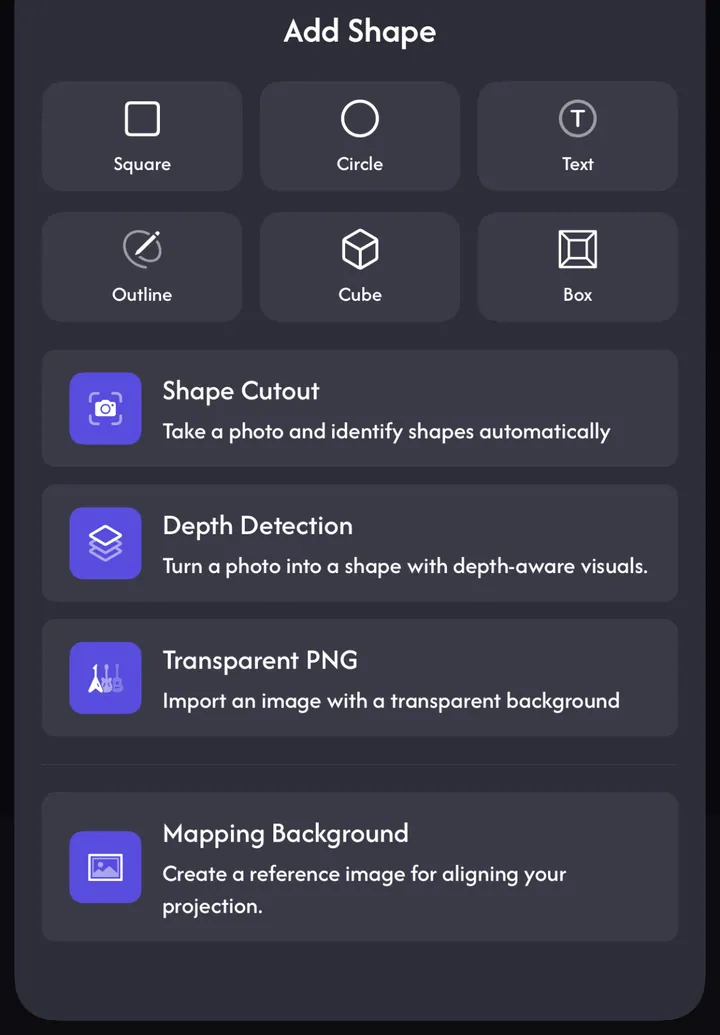
Shape Cutout (iPhone and iPad)
- 1
Tap + → Shape Cutout and choose Camera or Import from Photos (or Use Template Image if you already have a Mapping Background — the shapes then land exactly where they are in it).
- 2
Choose Main Object to cut out the main subject, or Shapes to find several shapes at once.
- 3
In Shapes, tune Focus (Obvious or All), Sensitivity (Clean, Normal, Fine), Detail (Fast or Detailed) and Min Size, then toggle the numbered chips for the shapes you want.
- 4
Tap ✓. Each selected shape is added to your mapping.
Depth Detection
Depth Detection reads how far each part of an object is from the camera. Depth visuals — the Pulse and Depth visuals categories in Play — use that to light the near and far parts of the object differently, so a flat projection looks sculpted onto it.
- 1
Tap + → Depth Detection and take a photo of the object or import one.
- 2
On Review cutout the background is removed automatically. Adjust the crop (Rectangle or Free), then tap Use photo.
- 3
The first time, the app downloads its depth model (about 50 MB). Depth is then worked out on your device.
- 4
Fine-tune Border inset and the Depth curve (far → near), then tap Done. The shape is placed where the object is in the photo.
- 5
In Play, add a visual from Pulse or Depth visuals. Depth shapes only take depth visuals, and depth visuals only play on depth shapes.
Fine-tune a depth shape
- Edit depth — reopen the depth curve and border; changes preview live on the projector.
- Anchor point — tap a detail in the photo (an eye, a corner) to lock it to the real object. Add a second anchor for more precision. Anchored shapes keep that detail in place while you drag corners.
- Photo — switch the preview between the depth map and the original photo.
Transparent PNG
Tap + → Transparent PNG, then Paste from Clipboard or Import from Photos. The image's transparent area becomes the outside of the shape, so a logo maps as a logo. If the image has no transparency you'll see Invalid Image — pick a PNG with a transparent background.
Mapping Background
A Mapping Background is a photo of your scene placed behind your shapes, so you can trace surfaces on the phone. You can have one per project.
- Manual: the projector turns white; take a photo standing as close to the projector as you can, then line the projected area up with the inner rectangle.
- Automatic: with a projector connected, the app projects four markers, finds them with the camera (Looking for 4 tags → 4 tags found), and aligns the photo for you after you tap Ready and hold still.
- Afterwards: select the background for Adjust (move its corners), Opacity, Hide and, on iPhone and iPad, Extract — tap something in the photo to turn it straight into a shape.
Common questions
Why does Depth Detection download something?
It needs an on-device depth model (about 50 MB). It downloads once, the first time you tap Use photo.
Can I put any visual on a depth shape?
No — depth shapes only accept depth visuals (the Pulse and Depth visuals categories), because those are the visuals that use depth.
Are the photo tools free?
Shape Cutout (iPhone and iPad), Depth Detection, Transparent PNG and Mapping Background are Pro features. Square, Circle, Text, Outline, Cube and Box are free.