HY300 projector app: connect your phone and use it for projection mapping
How to connect an iPhone or Android phone to an HY300 or HY300 Pro projector by app, cable or mirroring, and what it can do for small projection mapping displays.
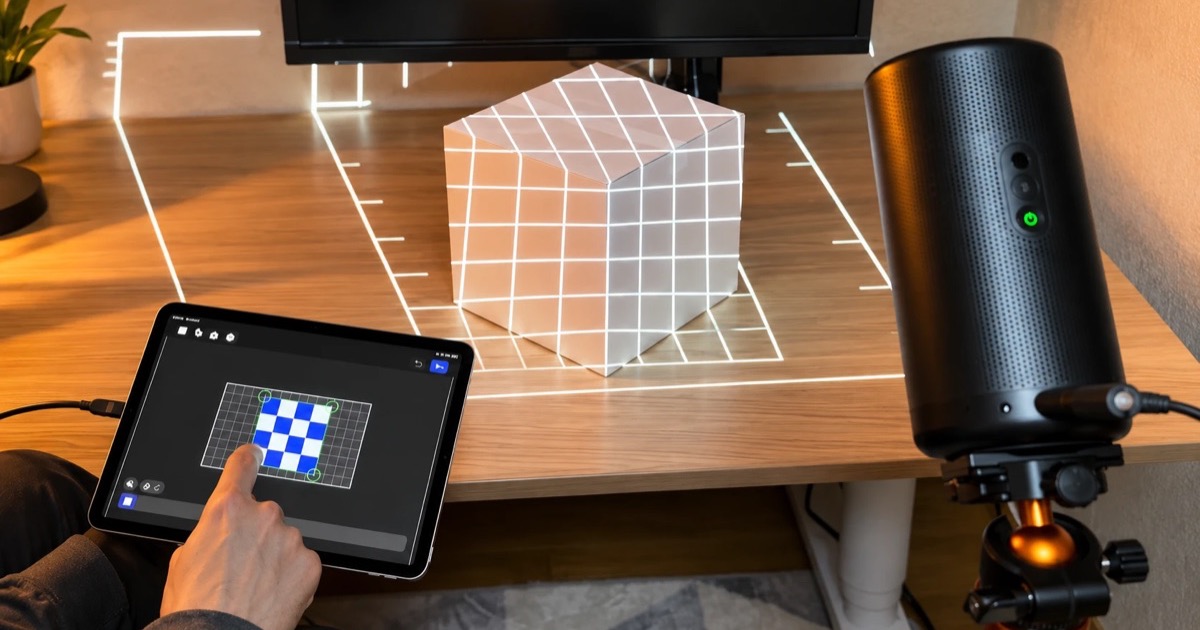
The HY300 is the small, inexpensive projector you've probably seen all over online stores: a compact mini projector sold by Magcubic and dozens of other brands, usually for well under $100. It runs a simple version of Android and has an HDMI input, which makes it a surprisingly capable partner for projection mapping from your phone, as long as you keep the projects small and the room dark.
It's also the most common projector family we see among people using Lazy Lighting Link, our receiver app for Android-based projectors. In October 2026, HY300-series models made up about a third of the projectors we could identify, with many owners in Brazil and Mexico. This guide covers which app to use, how to connect your phone to an HY300, and what it can and can't do. Disclosure: we make Lazy Lighting.

Map it from your phone
Lazy Lighting turns your phone into a projection mapping tool for any projector, on iPhone, iPad and Android.
Free to download · optional Pro
What is the HY300 projector?
HY300 isn't a single product. Magcubic made the design popular, and the same body is sold under many brand names as the HY300, HY300 Pro, HY300 Pro+ and close relatives like the HY320. Details change from seller to seller, so check the listing for your exact model. What they generally have in common:
- Resolution: a native 1280×720 (720p) picture. Listings that mention 1080p or 4K mean it accepts those signals, not that it shows that much detail.
- Brightness: spec sheets list roughly 120 to 260 ANSI lumens. Ads often quote much bigger "lumens" numbers that aren't measured the same way. Treat it as a dark-room projector.
- System: a basic version of Android (usually Android 11; some newer units run Android 13 or later) with Wi-Fi and apps built in. Many units include the Google Play Store; some are sold without it.
- Inputs: one HDMI input, plus USB and a headphone jack. Screen mirroring support varies between versions.
- Price: typically well under $100.
What's the best app for an HY300 projector?
It depends on what you want to do. For movies and streaming, use the apps on the projector itself. For projection mapping, where the video is fitted to boxes, windows and other real objects, you need an app on your phone or tablet that can warp and mask the picture, plus a way to get that picture to the projector.
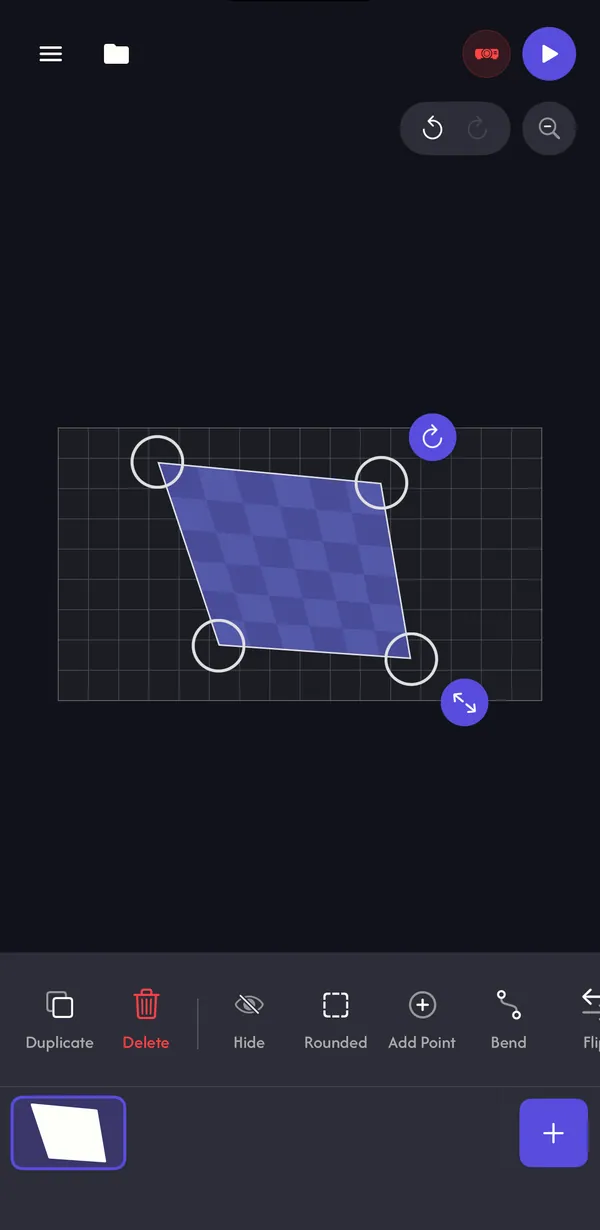
Lazy Lighting is a projection mapping app for iPhone, iPad and Android. You draw shapes over the objects in front of the projector, drag the corners into place while you watch the projection, and fill each shape with a visual: 45 Halloween scenes, 30 Christmas scenes and many more, or your own videos and photos. It's free to download; Pro unlocks the full library and removes the small watermark on the projector output.
See what Lazy Lighting does →How do I connect my phone to an HY300?
There are three ways. Lazy Lighting Link over Wi-Fi is the easiest when your HY300 has Google Play, a cable is the most reliable, and screen mirroring is hit and miss.
| Method | Works with | What to know |
|---|---|---|
| Lazy Lighting Link (Wi-Fi) | iPhone, iPad and Android | Install Lazy Lighting Link from the projector's Google Play Store. The phone and the projector need to be on the same Wi-Fi network. |
| HDMI cable | iPhones, iPads and Android phones with video output | A USB-C to HDMI adapter (iPhone 15 and later, USB-C iPads, Android phones with DisplayPort Alt Mode) or Apple's Lightning Digital AV Adapter for older iPhones. |
| Screen mirroring | Some Android phones | Depends on your HY300 version and your phone. HY300 units generally don't support AirPlay, so on an iPhone use Link or a cable. |
How do I set up Lazy Lighting Link on an HY300?
- 1
On the projector, open the Google Play Store, search for Lazy Lighting Link and install it. Almost every HY300 owner we see using Link installed it this way.
- 2
Open Lazy Lighting Link on the projector and leave it on the Live Cast tab.
- 3
Put the projector and your phone on the same Wi-Fi network. Guest networks, hotel Wi-Fi and VPNs can stop them from seeing each other.
- 4
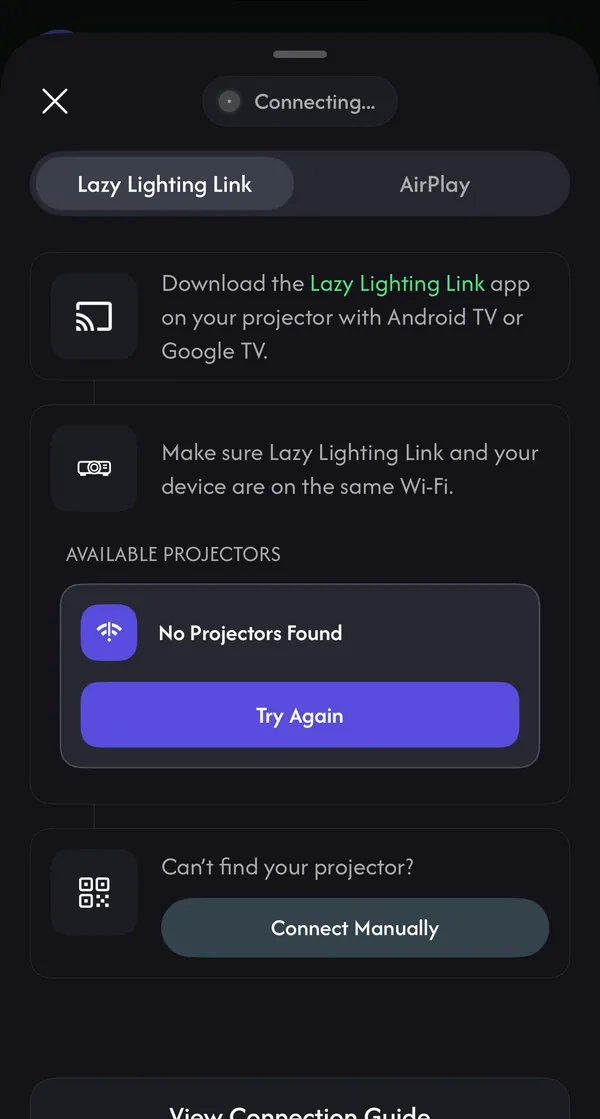
In Lazy Lighting on your phone, tap Connect Your Projector, then Wireless. Stay on the Lazy Lighting Link tab and pick your projector under Available Projectors.
- 5
The first time, type the four-digit PIN the projector shows and tap Pair. Your mapping appears on the wall.
Map it from your phone
Lazy Lighting turns your phone into a projection mapping tool for any projector, on iPhone, iPad and Android.
Free to download · optional Pro
What if my HY300 doesn't have Google Play?
Some HY300 versions ship without the Play Store and only offer the seller's own app store. Lazy Lighting Link is published on Google Play, so on those units the dependable option is an HDMI cable from your phone. We don't recommend installing apps from third-party APK sites, because you can't be sure what's inside them.
Screen mirroring from an Android phone may also work, depending on your phone and your projector's version. Try it, and fall back to a cable if the picture lags or drops.
With Pro there's one more option: export your mapped show as a video, copy it to a USB drive and play it from the projector's USB port. Keep the projector in exactly the same spot, and the mapping lines up just as it did on your phone.
Is the HY300 bright enough for projection mapping?
Yes, for the right projects. As a rough guide, small objects and windows indoors after dark need about 300 ANSI lumens, which puts the HY300 at the bottom of the range. It does well when the room is dark and the surface is small and light-colored, and it struggles as soon as lamps, daylight or streetlights hit the surface.
| Project | Good fit for an HY300? |
|---|---|
| A stack of white boxes or gift boxes indoors, lights off | Yes. This is its best use. |
| A pumpkin, a bust or a sign on a table | Yes, in a dark room. |
| A window with a white sheet behind the glass, seen from the street at night | Yes for a small window viewed from nearby. On a bright street, a brighter projector helps. |
| Part of a wall in a dark room | Yes, kept small. A whole wall wants 500 to 1,000 lumens. |
| A garage door or the front of a house | No. Those need roughly 3,000 to 5,000+ lumens. |
Tips for projection mapping with an HY300
- Turn off keystone. Set the projector's keystone and auto keystone to zero and do all the shaping in Lazy Lighting. Mapping each surface's corners in the app does the same job as keystone, surface by surface.
- Go small and close. Moving the projector closer makes the picture smaller and brighter. Fill the object, not the wall.
- Let the black do the work. Everything outside your shapes is projected black, so light only lands on your objects. High-contrast visuals read best on a dim projector: neon patterns, jack-o'-lantern faces, Christmas wrapping-paper patterns.
- Use light, matte surfaces. White boxes, a white sheet or white butcher paper. Dark or glossy surfaces swallow the light or throw glare back at you.
- Remove stray light. Close the curtains, switch off lamps that face the surface, and map with the room lights off.
- Focus first, then don't move it. Focus on the object before you map. Once it's mapped, any bump means remapping, so keep the projector on a shelf or stand where it can't be knocked.
- Run the show without your phone. If Link runs on your HY300, Playback (part of Pro) sends the finished show to the projector, which keeps playing it after you close the app.
What can't the HY300 do?
It's a budget projector, and it's fair to say so. The 720p picture is soft up close, the fan is audible, and the brightness rules out house fronts, garage doors and anything with lights nearby.
If you want something brighter for indoor projects that still runs Lazy Lighting Link, look at a projector with Google TV. For a whole-house display you need a far brighter projector than any mini model.
Projectors, tripods and cables we recommend →Christmas ideas for an HY300
- Moving wrapping paper on gift boxes. → Stack a few plain white boxes and map each one with a Christmas pattern. A dark room and a short distance suit the HY300 perfectly.
- A snowy window. Hang a white sheet behind a small window and play falling snow or a Christmas scene for people passing by.
- Next to the tree. Map a single box, a sign or a small stack of presents by the tree.
Frequently asked questions
- Does the HY300 work with Lazy Lighting? Yes. Connect your phone with an HDMI cable, or install Lazy Lighting Link on the projector if it has the Google Play Store and connect over Wi-Fi. Lazy Lighting runs on iPhone, iPad and Android.
- Does the HY300 have Google Play? Many units do, including most of the HY300s we see running Lazy Lighting Link. Some versions are sold without it, so check your projector's apps or the seller's listing.
- Is the HY300 safe to connect to Wi-Fi? → Check yours first. Researchers found hidden apps in the firmware of some HY300 Pro and Pro+ units, so run a few checks before you install apps or join your home network. An HDMI cable works with the projector offline.
- Can I connect an iPhone to an HY300 wirelessly? Not with AirPlay, which HY300 units generally don't support. Use Lazy Lighting Link if your projector has Google Play, or a USB-C or Lightning to HDMI adapter.
- Is the HY300 good for projection mapping? For small indoor projects in a dark room, yes: boxes, pumpkins, a window with a sheet behind it. It isn't bright enough for a garage door or the front of a house.
- What resolution is the HY300? 720p native (1280×720). It accepts 1080p and 4K signals but shows them at 720p.
- Should I use the HY300's keystone correction? → No. Set keystone to zero and shape the picture in Lazy Lighting instead. Mapping does what keystone does, one surface at a time.
- Do I need Lazy Lighting Pro? No. Mapping, your own videos and photos, and about 20 visuals are free, with a small watermark on the projector output. Pro removes the watermark and adds the full library, project saving and Playback.