How to connect your phone to a projector: every way, wired and wireless
Connect an iPhone, iPad or Android phone to a projector by HDMI, AirPlay, Miracast or Google TV, with fixes for no Wi-Fi, no HDMI and a black screen.
The most reliable way to connect a phone to a projector is a cable: a USB-C or Lightning to HDMI adapter into the projector's HDMI port, then switch the projector to that input. Without a cable, iPhones and iPads use AirPlay, many Android phones use screen mirroring (Miracast or Smart View), and projectors with Google TV, or a Chromecast plugged into one, can receive from apps that support them.
Which one works for you depends on three things: your phone's port, what your projector supports, and whether both devices can join the same Wi-Fi network. This guide covers every option, plus fixes for no Wi-Fi, no HDMI port, a black screen and lag.
Disclosure: we make Lazy Lighting, a projection mapping app for iPhone, iPad and Android. The steps here work for any app; where Lazy Lighting does something differently, we say so.
Using Lazy Lighting? Its own connection guide →
Map it from your phone
Lazy Lighting turns your phone into a projection mapping tool for any projector, on iPhone, iPad and Android.
Free to download · optional Pro
Which connection should you use?
If you're projecting onto objects or syncing visuals to music, start with a cable. Wireless is easier to set up but adds delay.
| Method | Phones | Projector needs | Wi-Fi | Delay | Best for |
|---|---|---|---|---|---|
| USB-C to HDMI | iPhone 15 and later, USB-C iPads, Android phones with video output over USB-C | An HDMI input | Not needed | None | Anything, especially projection mapping and music |
| Lightning to HDMI | iPhone 5 to iPhone 14, iPhone SE, Lightning iPads | An HDMI input | Not needed | None | Older iPhones and iPads |
| AirPlay | iPhone and iPad | An Apple TV, or AirPlay built into the projector or TV | Same network | Some | Videos, photos and slides without a cable |
| Screen mirroring (Miracast, Smart View) | Many Android phones, including Samsung Galaxy (not Google Pixel) | Built-in Miracast or a Miracast dongle | Not needed: it connects directly | Some | Android phones without video output over USB-C |
| Google Cast (Chromecast, Google TV) | Android phones, and apps with a Cast button on iPhone | Google TV built in, or a Chromecast | Same network | Some | Streaming apps like YouTube |
| Lazy Lighting Link | iPhone, iPad and Android, with the Lazy Lighting app | Android TV or Google TV, or a Chromecast with Google TV | Same network | Less than AirPlay | Wireless projection mapping |
| USB drive | Any phone: you copy a finished video | A USB port that plays video files | Not needed | None | Looping a finished video all evening |
How do I connect my iPhone or iPad to a projector with a cable?
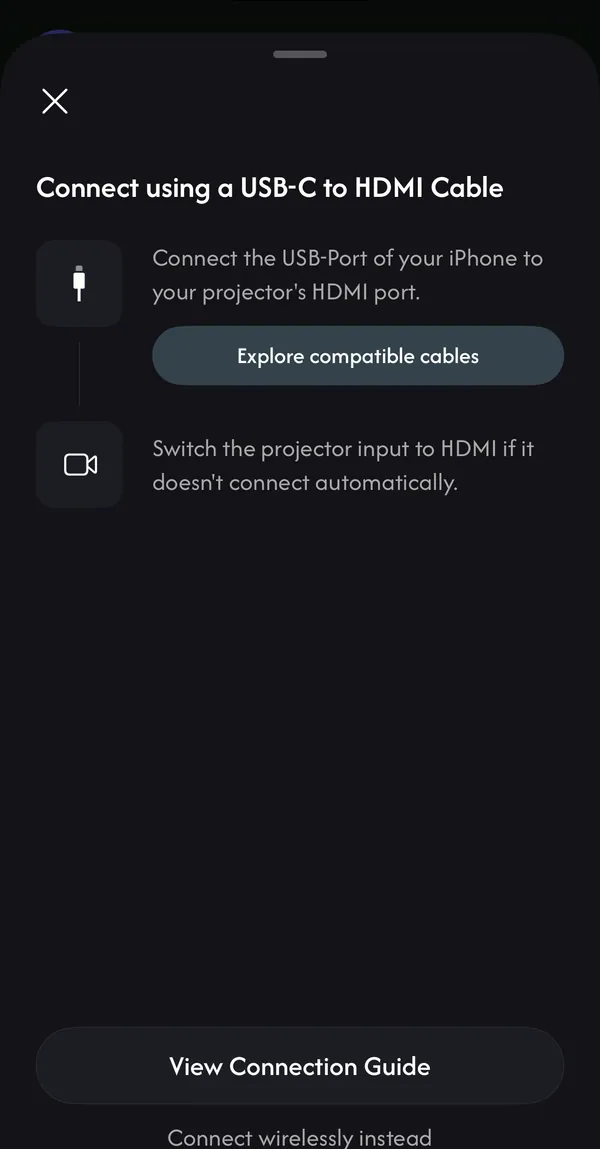
You need an adapter that matches your device's port, plus an HDMI cable. iPhone 15 and later and USB-C iPads use a USB-C to HDMI adapter or a USB-C to HDMI cable; any adapter that supports video output works. iPhone 5 to iPhone 14 and iPhone SE use Apple's Lightning Digital AV Adapter. Apple's own Lightning adapter is the most reliable; cheap Lightning adapters are hit and miss.
- 1
Plug the adapter into your iPhone or iPad and run an HDMI cable from the adapter to the projector.
- 2
Switch the projector's input (source) to that HDMI port.
- 3
Your screen appears on the projector. Apps that support a second screen, like many video players and Lazy Lighting, show a full-screen picture there instead of a copy of your phone.
- 4
For long sessions, plug your charger into the adapter's charging port if it has one.
How do I connect an Android phone to a projector with a cable?
With a USB-C to HDMI adapter or cable, but only if your phone can send video over USB-C, which is called DisplayPort Alt Mode. Most Samsung Galaxy flagships, Google Pixel 8 and later, and many other recent flagships can. Many budget and mid-range phones can't, even though the port looks the same.
Before you buy an adapter, search for your phone model plus "video output" or "DisplayPort Alt Mode". If it can't, use screen mirroring or a wireless receiver instead.
- 1
Plug the adapter into the phone and an HDMI cable into the projector.
- 2
Switch the projector to that HDMI input.
- 3
Your screen appears on the projector. Apps that support a second display, like Lazy Lighting, show their own full-screen output there.
How do I connect my iPhone to a projector wirelessly?
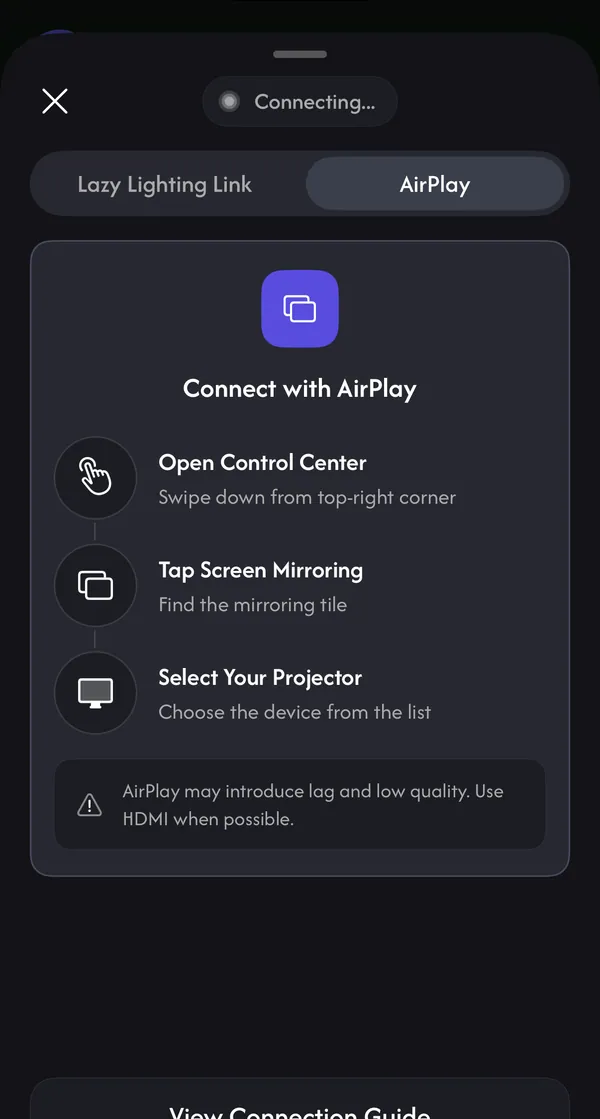
With AirPlay. You need an Apple TV plugged into the projector, or a projector or TV with AirPlay built in, on the same Wi-Fi network as your iPhone or iPad.
- 1
Open Control Center (swipe down from the top-right corner).
- 2
Tap Screen Mirroring and choose your Apple TV or AirPlay projector.
- 3
If a code appears on the projector, type it on your iPhone.
- 4
To stop, open Control Center, tap Screen Mirroring, then Stop Mirroring.
How do I connect an Android phone to a projector wirelessly?
Lazy Lighting on Android works with screen mirroring on phones that support it, and wirelessly through Lazy Lighting Link on Android TV and Google TV projectors.
- Screen mirroring (Miracast or Smart View): if your projector supports Miracast, or has a Miracast dongle plugged in, open Quick Settings and tap Smart View or Screen mirroring (the name depends on your phone), then choose the projector. It connects directly, so it doesn't need a router. Google Pixel phones don't support Miracast.
- Google Cast: if the projector has Google TV built in or a Chromecast plugged in, apps with a Cast button, like YouTube, can send video to it, and the Google Home app can cast your whole screen.
- The projector's own mirroring input: many budget projectors have a screen-mirroring source with their own pairing steps. Check the projector's manual for its name.
Map it from your phone
Lazy Lighting turns your phone into a projection mapping tool for any projector, on iPhone, iPad and Android.
Free to download · optional Pro
Can I connect my phone to a projector with Chromecast or Google TV?
Yes, for apps with a Cast button and for screen casting from an Android phone. An iPhone can't mirror its whole screen to a Chromecast without a third-party app; iPhones use AirPlay instead.
For projection mapping, Lazy Lighting doesn't use the Cast button. You install its receiver app, Lazy Lighting Link, from Google Play on the projector, or on a Chromecast with Google TV plugged into it. Your iPhone, iPad or Android phone then streams the projection to it over Wi-Fi. Older Chromecasts that can't install apps don't work with Link.
How Lazy Lighting Link works →How do I connect my phone to a projector without Wi-Fi?
AirPlay to most projectors, Google Cast and Lazy Lighting Link all need the phone and the projector on the same Wi-Fi network.
- Use a cable. A USB-C or Lightning to HDMI connection doesn't need any network.
- Use Miracast on Android. Screen mirroring to a Miracast projector or dongle connects directly, with no router.
- Use a USB drive. Save your video to a USB drive and plug it into the projector's USB port, if the projector can play video files.
How do I connect my phone to a projector without HDMI?
If the projector has no free HDMI port, or you don't want a cable, connect wirelessly: AirPlay for iPhone and iPad, Miracast for many Android phones, or Google Cast for apps that support it. An older projector with only a VGA input needs an HDMI to VGA converter between the adapter and the projector, and results vary.
Some projectors can also play video files straight from a USB port. That works for a finished loop, but not for anything you want to control live.
Connecting your phone for projection mapping
Projection mapping needs the projector to show exactly what the mapping app sends, full screen, without your phone's buttons on top. Apps built for it, like Lazy Lighting, treat the projector as a second screen: the phone shows the controls and the projector shows only the mapped output.
- Cable first. It has no delay, which matters when visuals react to music.
- Keep the projector still. After you map, a bumped projector shifts every shape, so put it on a tripod or a shelf.
- Wireless when a cable can't reach. With an Android TV or Google TV projector, Lazy Lighting Link streams the projection over Wi-Fi from iPhone, iPad or Android. With Playback (part of Pro), the TV keeps looping your show after you put the phone away.
Why is my projector showing a black screen or the wrong picture?
- No signal: check that the projector's input matches the port you plugged into, then try another cable or adapter.
- Black screen in a streaming app: some streaming apps block video over adapters and mirroring because of copy protection (HDCP). Use the projector's own streaming app for those. Your own videos and photos, and Lazy Lighting's visuals, aren't affected.
- Android adapter does nothing: the phone probably has no video output over USB-C. Use screen mirroring or a wireless receiver instead.
- Small picture or black bars: mirroring copies your phone's shape. Turn the phone sideways, or use an app that sends a full-screen picture to the projector.
- Lag or stutter: move closer to the router, use 5 GHz Wi-Fi, or switch to a cable.
- Projector not in the wireless list: both devices must be on the same Wi-Fi. Guest networks, hotel Wi-Fi and VPNs often stop devices from seeing each other.
Which projector works best with a phone?
Any projector with an HDMI input works with a cable. For wireless, one that runs Android TV or Google TV is the most flexible: it accepts Google Cast and can run receiver apps like Lazy Lighting Link. Budget HY300-style mini projectors are popular for this, but check whether yours has the Google Play Store before relying on apps.
Using an HY300 projector with your phone →Frequently asked questions
- Can I connect my phone to any projector? Almost any projector with an HDMI input, with the right adapter. An older VGA-only projector needs an HDMI to VGA converter as well.
- Can I connect my phone to a projector with a USB cable? Not with a plain USB cable into the projector's USB port, which is usually for power or for playing files. You need a USB-C to HDMI adapter, with a phone that supports video output, or Apple's Lightning to HDMI adapter.
- Do I need an app to connect my phone to a projector? Not for a cable or for built-in mirroring like AirPlay and Miracast. Apps matter when you want a full-screen picture on the projector while you control things on the phone, which is what projection mapping apps do.
- Is there an app that turns my phone into a projector? → No. A phone has no projector lamp or lens, so no app can make it project light. You need a real projector; the phone sends it the picture.
- Does Lazy Lighting work with Chromecast? Yes, through Lazy Lighting Link on a Chromecast with Google TV. Older Chromecasts without Google TV can't install apps, and the Lazy Lighting phone app has no Cast button.
- Does Lazy Lighting need an app on the projector? Only for wireless casting with Lazy Lighting Link. A cable, AirPlay or screen mirroring needs nothing on the projector.