Lazy Lighting Link: the TV app for wireless projection mapping
The official guide to Lazy Lighting Link, the receiver app for Android TV, Google TV and Chromecast with Google TV: setup, Live Cast, Playback and fixes.
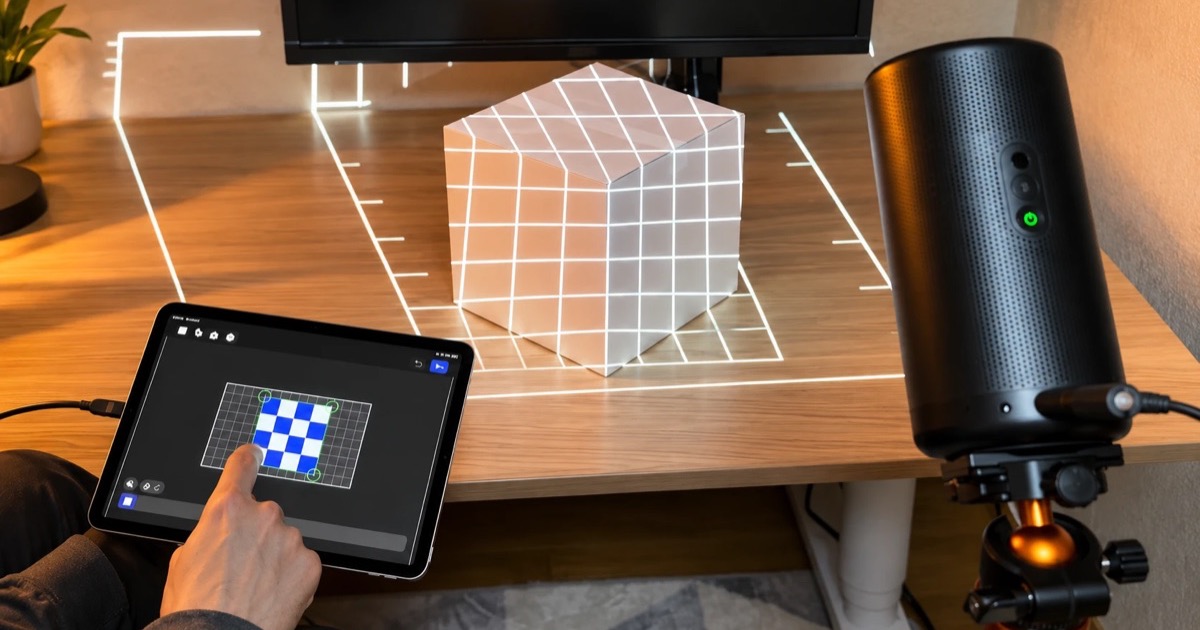
Lazy Lighting Link is the receiver app that lets Lazy Lighting play on a projector or TV without a cable. You install Link on a projector or TV that runs Android TV or Google TV, or on a Chromecast with Google TV plugged into any projector, and your iPhone, iPad or Android phone streams the projection to it over Wi-Fi.
It does two jobs. Live Cast shows your mapping live while you control it from the phone. Playback saves a finished show on the TV and keeps looping it after you put the phone away.
Disclosure: we make Lazy Lighting and Lazy Lighting Link. This is our official guide.
Lazy Lighting Link on Google Play ↗
Map it from your phone
Lazy Lighting turns your phone into a projection mapping tool for any projector, on iPhone, iPad and Android.
Free to download · optional Pro
Lazy Lighting Link at a glance
| Feature | Lazy Lighting Link |
|---|---|
| What it is | A receiver app for TVs and projectors, made by the Lazy Lighting team |
| Install it on | Projectors and TVs with Android TV or Google TV (Android 8.0 or later), or a Chromecast with Google TV |
| Where to get it | Google Play on the TV or projector: search for Lazy Lighting Link |
| Works with | The Lazy Lighting app on iPhone, iPad and Android |
| Connection | The phone and the TV on the same Wi-Fi network, with no cable between them |
| Live Cast | Streams your projection in 1920×1080 while the app stays open |
| Playback | The TV saves a finished show and loops it without your phone (Pro) |
| Pairing | A four-digit PIN shown on the TV the first time; after that the TV remembers your phone for about 30 days |
Which TVs and projectors does Lazy Lighting Link work on?
Any projector or TV that runs Android TV or Google TV with the Google Play Store, on Android 8.0 or later. That includes Google TV projectors like the Nebula Capsule 3 Laser, Android TV projectors and many budget mini projectors. Any other projector with an HDMI port works too: plug in a Chromecast with Google TV and install Link on that.
- Not supported: devices without Google Play, such as Fire TV, Roku and older Chromecasts that can't install apps. For those, connect your phone with a cable, AirPlay or screen mirroring instead.
How do I set up Lazy Lighting Link?
- 1
On the projector or TV, open the Google Play Store, search for Lazy Lighting Link and install it.
- 2
Connect the projector and your phone to the same Wi-Fi network.
- 3
Open Lazy Lighting Link and go to its Live Cast tab.
- 4
On your phone, open Lazy Lighting. On iPhone or iPad, tap Connect Your Projector, then Wireless. On Android, tap Wireless.
- 5
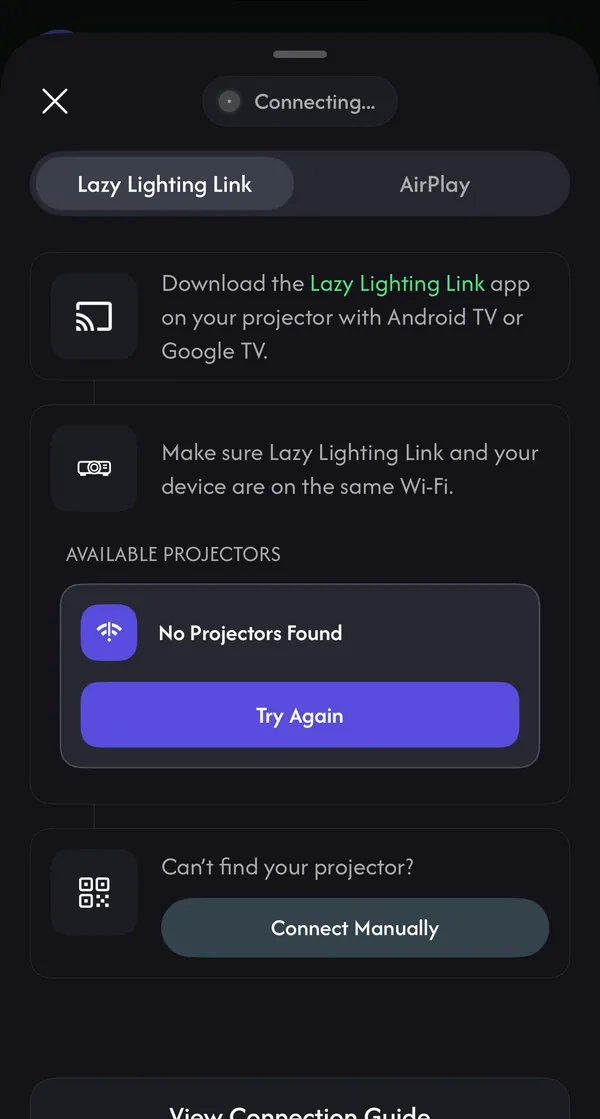
Pick your projector under Available Projectors. The first time, the TV shows a four-digit PIN: type it on your phone and tap Pair.
- 6
The projector shows your mapping. On iPhone, allow Lazy Lighting to use your local network when it asks; without that it can't find the TV.
Map it from your phone
Lazy Lighting turns your phone into a projection mapping tool for any projector, on iPhone, iPad and Android.
Free to download · optional Pro
My projector isn't in the list. How do I connect manually?
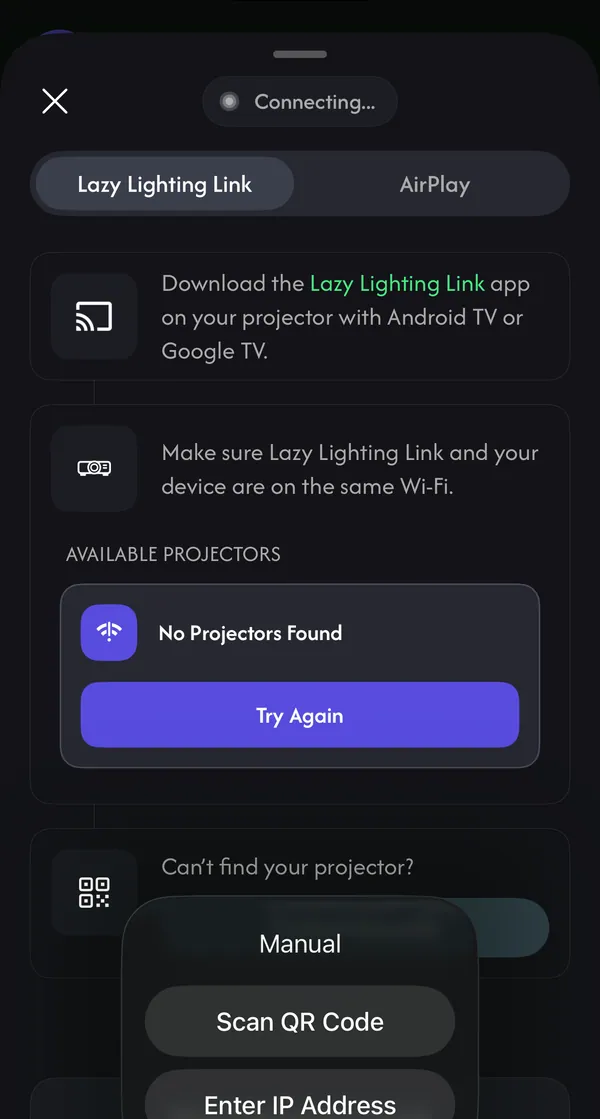
Tap Connect Manually on your phone (on iPhone and iPad it's under Can't find your projector?), then choose one of these:
- Scan QR Code: on the TV, open Live Cast, then Manual Connection, and scan the QR code it shows with Lazy Lighting's scanner. Scan it from inside the app: your phone's regular camera only opens a web page.
- Enter the IP address: type the address the TV shows under Manual Connection, for example 192.168.1.8.
What's the difference between Live Cast and Playback?
To start Playback on iPhone or iPad, tap the green projector button while Live Casting and choose Switch to Playback. On iPhone, iPad or Android, you can also open Playback in the Link app, export your timeline and tap Send to TV. Once the show reaches the TV, you can close Lazy Lighting and it keeps playing.
| Feature | Live Cast | Playback |
|---|---|---|
| What happens | Your phone streams the projection live | The TV saves a finished video and plays it by itself |
| Phone needed | Yes, for as long as it plays | Only to send the show |
| What you control | Change visuals and shapes live from the phone | Loop or Static, and Fine Tune on the TV |
| Plan | Free plan (with the small watermark) or Pro | Pro |
| Best for | Parties, testing and live shows | A window or porch display that runs all evening |
Loop, Static, Fine Tune and Saved: playing your show on the TV
- Loop: plays the video continuously from the beginning.
- Static: holds the first frame until you press OK on the remote, then plays once.
- Fine Tune: press Back during playback to open the Project menu, then move the frame, resize it, drag its corners, rotate or flip it. That lines the picture up again if the projector moved a little.
- Saved: every show you send stays under Saved, in Saved Playbacks, with its alignment. Next time, open it on the TV with no phone needed. Deleting it removes the video and its tuning from that TV.
Troubleshooting Lazy Lighting Link
- No Projectors Found: check that both devices are on the same Wi-Fi and that Link is open on its Live Cast tab, then try again or connect manually.
- Local network access is off (iPhone): turn on Local Network for Lazy Lighting in Settings, then Lazy Lighting.
- Could not reach the TV: keep the TV app open, put both devices on the same network and switch off any VPN. Guest Wi-Fi often stops devices from seeing each other.
- Another device is already casting to this TV: stop the cast on the other phone first.
- Too many pairing attempts: wait a minute, then try the PIN again.
- Stuttering: move closer to the router, use 5 GHz Wi-Fi, or connect with a cable.
Frequently asked questions
- Is Lazy Lighting Link the same as Chromecast? No. Chromecast is Google's casting system; Link is Lazy Lighting's own receiver app. It runs on a Chromecast with Google TV, but the Lazy Lighting phone app has no Cast button: you connect from inside Lazy Lighting instead.
- Does it work with iPhone and Android? Yes. Live Cast and Send to TV work from Lazy Lighting on iPhone, iPad and Android.
- Does Lazy Lighting Link work without Wi-Fi? No. Link needs the phone and the TV on the same Wi-Fi network, and it doesn't connect over Bluetooth or USB. With no Wi-Fi, plug your phone into the projector with an HDMI adapter instead.
- Can I connect to Link with a USB cable? No. For a wired connection, plug your phone into the projector's HDMI port with a USB-C or Lightning to HDMI adapter. That works with any projector and has no delay.
- Is there a Lazy Lighting Link APK? We publish Lazy Lighting Link on Google Play only. If your projector has no Play Store, connect with a cable or screen mirroring instead.
- Can Lazy Lighting Link drive more than one projector? One phone casts to one TV at a time, and each TV accepts one cast at a time. For several projectors, use Playback: send a show to each TV in turn, and each one loops its own copy.
- Do I need Pro for Lazy Lighting Link? Not for Live Cast, which works on the free plan with the same small watermark as any free projector output. Playback (Send to TV) is part of Pro.
- Why did scanning the TV's QR code open a web page? The code is meant for the scanner inside Lazy Lighting. Open the app, tap Connect Manually and choose Scan QR Code.